
4. Block lists and domains
This chapter shows how to make block lists, how to allow and deny single names, and how to find out which list blocks a name.
Before you start: You have the role Operator or Admin. To only read the pages, the role Viewer is sufficient.
How lists work
A list is a set of names. A list has a mode.
| Mode | Effect |
|---|---|
| Block list | kudurru blocks the names on the list for the clients of the policies that use the list. |
| Allow list | kudurru never blocks the names on the list. An allow list wins over every block list. |
A list does nothing until a policy uses it. Chapter 5 explains policies. The wizard that makes a list can add it to policies for you.
A list can have more than one source. A source is one of these:
- a URL that kudurru fetches again at an interval
- a ConfigMap (Kubernetes only)
- entries that you type or paste (an inline source)
kudurru reads these formats:
| Format | Example line |
|---|---|
| hosts file | 0.0.0.0 ads.example.com |
| One domain per line | ads.example.com |
| Adblock syntax | ||ads.example.com^ |
| Regular expressions | ^ads?[0-9]*\. |
| Detect automatically | kudurru reads the first lines and selects the format |
See the lists
Open Filtering > Lists. Figure 1 shows the page.
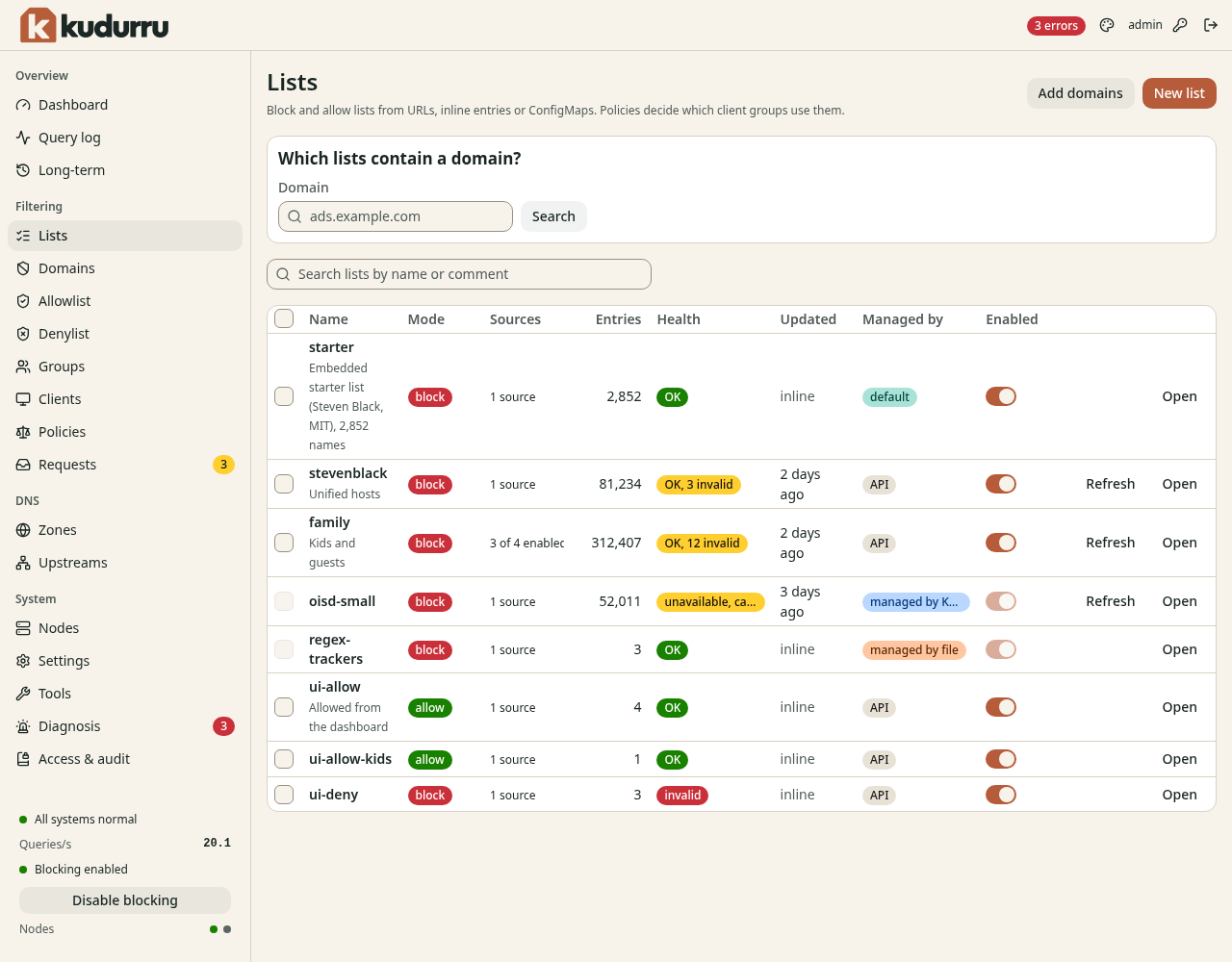
Figure 1. The page Lists.
| Column | Meaning |
|---|---|
| Name | The name and the comment of the list |
| Mode | block or allow |
| Sources | The number of sources, and how many are on |
| Entries | The number of rules that kudurru compiled |
| Health | OK, OK, N invalid, unavailable, cached or invalid |
| Updated | The time of the last refresh, or inline |
| Managed by | The owner of the list |
| Enabled | A switch. When it is off, kudurru does not fetch or apply the list. |
The health unavailable, cached means that the last fetch failed. kudurru
uses the copy that it fetched before. Chapter 12 explains what to do.
Find the lists that contain a name
- Enter the name in Domain in the box Which lists contain a domain?.
- Click Search.
The page shows the lists that contain the name. Use this to find which list blocks a name.
Create a block list
- Open Filtering > Lists.
- Click New list. A wizard opens.
- On the step Type, select Block list. Click Next.
- On the step Sources, add one or more sources:
- Select a list in Well-known lists. Figure 2 shows the choices.
- Or click Add a URL. Enter the URL. Select the Format.
- Or enter names in Paste entries.
- Click Next.
- On the step Options, enter a Name. Use lower-case letters, digits and dashes.
- Select the policies in Use in policies.
- Click Next.
- On the step Review, read the summary. Click Create list.
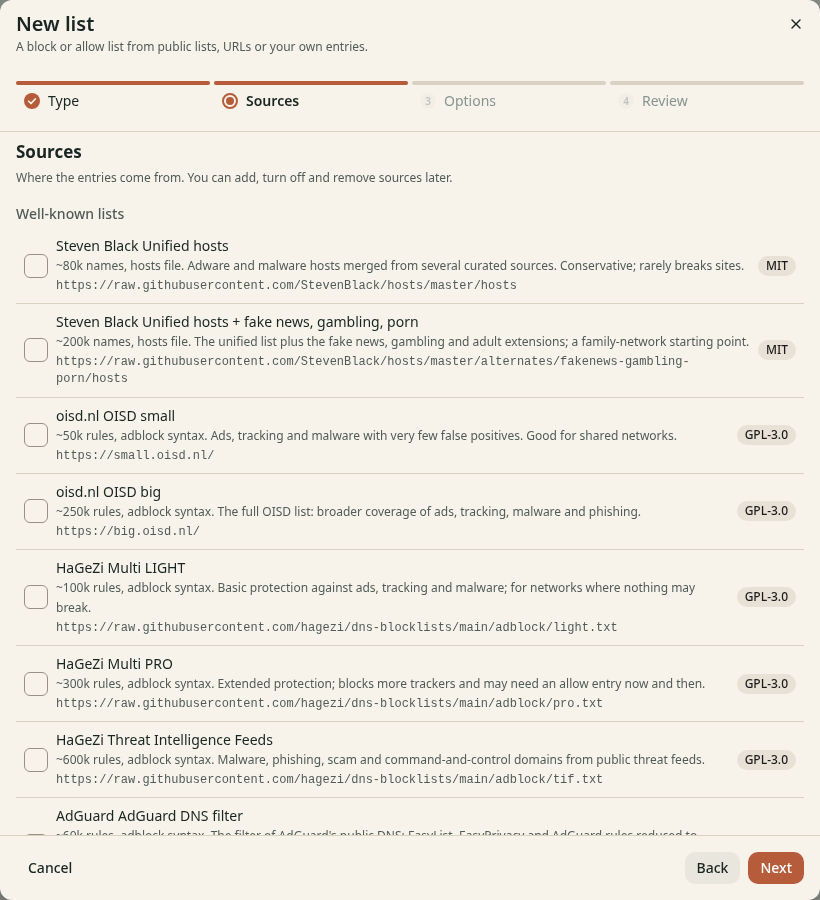
Figure 2. The step Sources of the wizard.
On the step Options (Figure 3) you can also set these items:
| Item | Meaning |
|---|---|
| Comment | A note for other administrators |
| Refresh interval | How often kudurru fetches the URLs again. The default is every day. |
| Block response | What a blocked client gets. The default is the response of the policy. |
| Start enabled | When this switch is off, kudurru stores the list and does not apply it. |
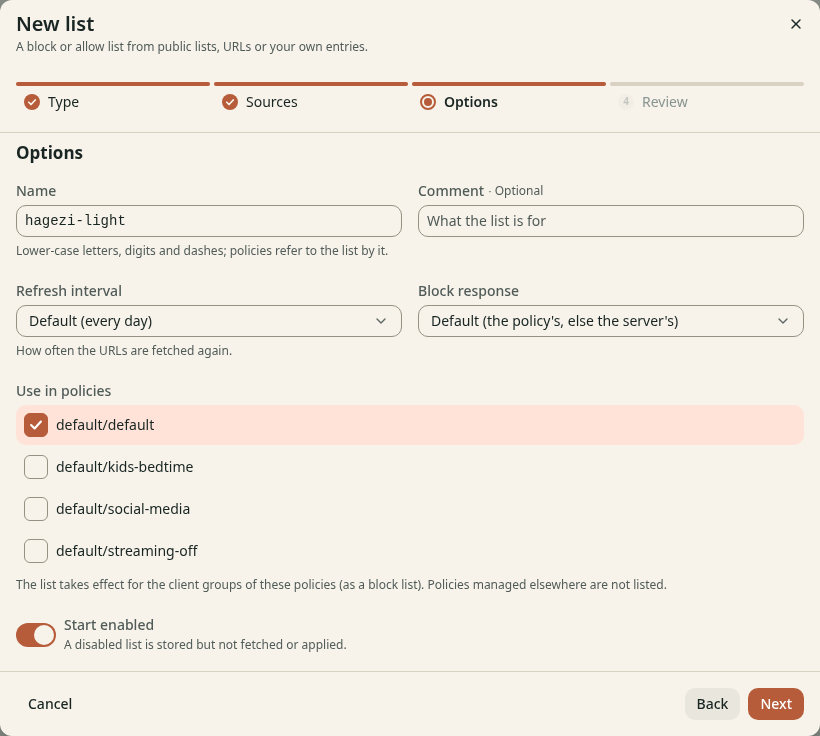
Figure 3. The step Options of the wizard.
If no policy uses the list, the step Review shows the warning No policy uses this list. The list exists but has no effect.
The default policy of a new system uses the block list starter. It has
about 2,800 names. Add a larger list for more protection.
CAUTION: A large list can block a site that you need. Start with a small list. Turn off blocking for a short time to test (Chapter 3).
Block responses
The block response decides what a blocked client gets.
| Response | Meaning |
|---|---|
| NXDOMAIN | The name does not exist. |
| 0.0.0.0 / :: | An address that no device can use. Apps fail fast. |
| REFUSED | The server refuses to answer. |
| Custom IP | The addresses that you enter, for example a local web server. |
| Block page | The client goes to the kudurru block page. Chapter 6 explains it. |
Change a list
Click Open in the row of the list. Figure 4 shows the page of a list.
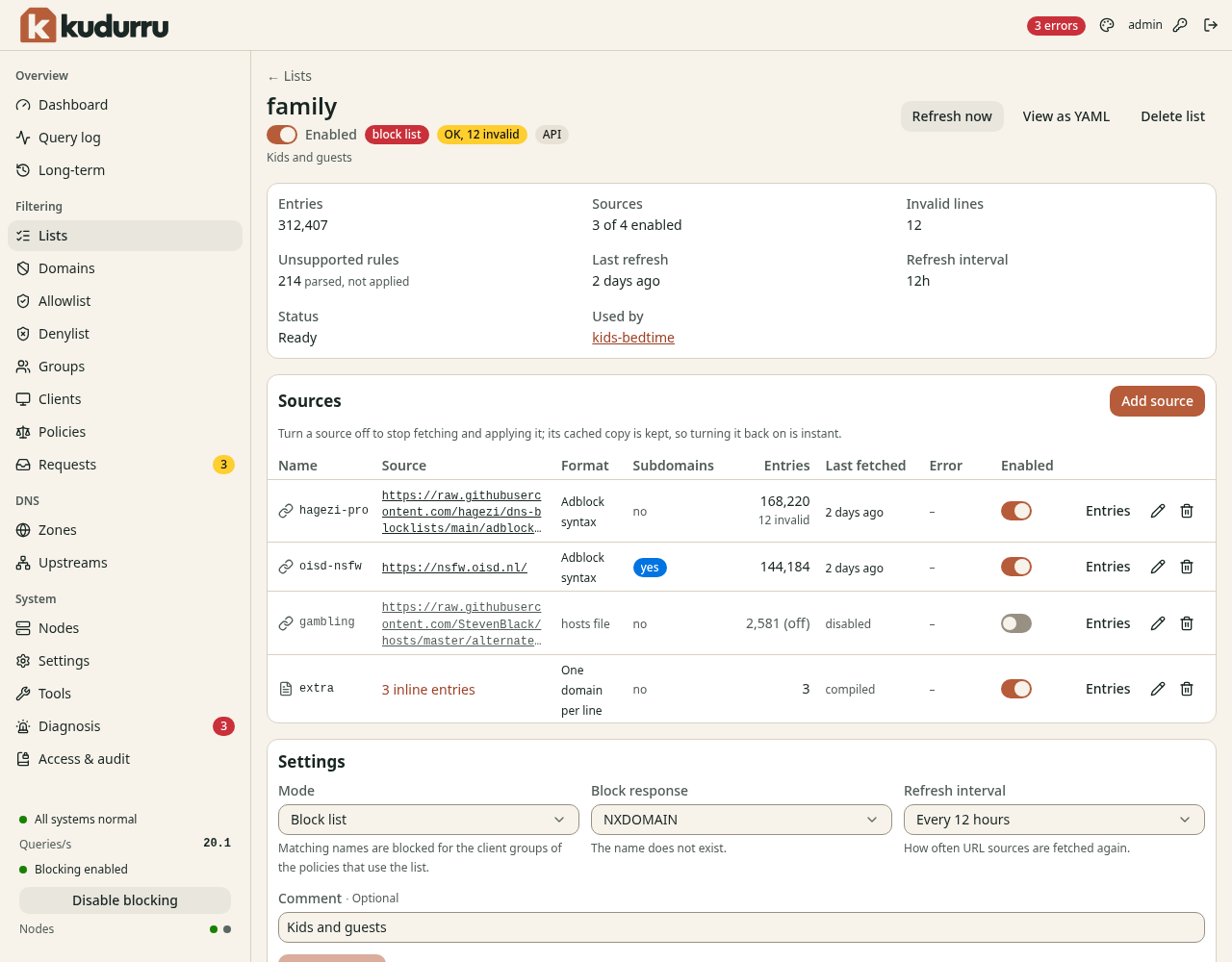
Figure 4. The page of a list.
The page has these functions:
- Refresh now: fetch all the URL sources at once.
- View as YAML: show the list as YAML.
- Delete list: remove the list. A dialog asks you to confirm.
- The switch Enabled: turn the whole list on or off.
- Add source: add a URL, a ConfigMap, pasted entries or an uploaded file.
- A switch in each row of Sources: turn one source on or off. kudurru keeps the copy of a source that is off.
- Edit and Delete in a source row: change or remove the source.
- Settings: change the Mode, the Block response, the Refresh interval and the Comment.
The statistics at the top show the Entries, the Invalid lines and the Unsupported rules. An unsupported rule is a rule that kudurru parsed but does not apply. Used by lists the policies that use the list.
NOTE: You cannot change a list whose owner is managed by file or managed by Kubernetes. Change the file or the resource instead.
Turn off one entry of a list
Use this function when a list blocks a name that you need, and you want to keep the other names of the list.
- Open the page of the list.
- Click Entries in the row of the source.
- Enter a part of the name in Search entries.
- Turn off the switch Enabled in the row of the entry.
Figure 5 shows the entries of a source.
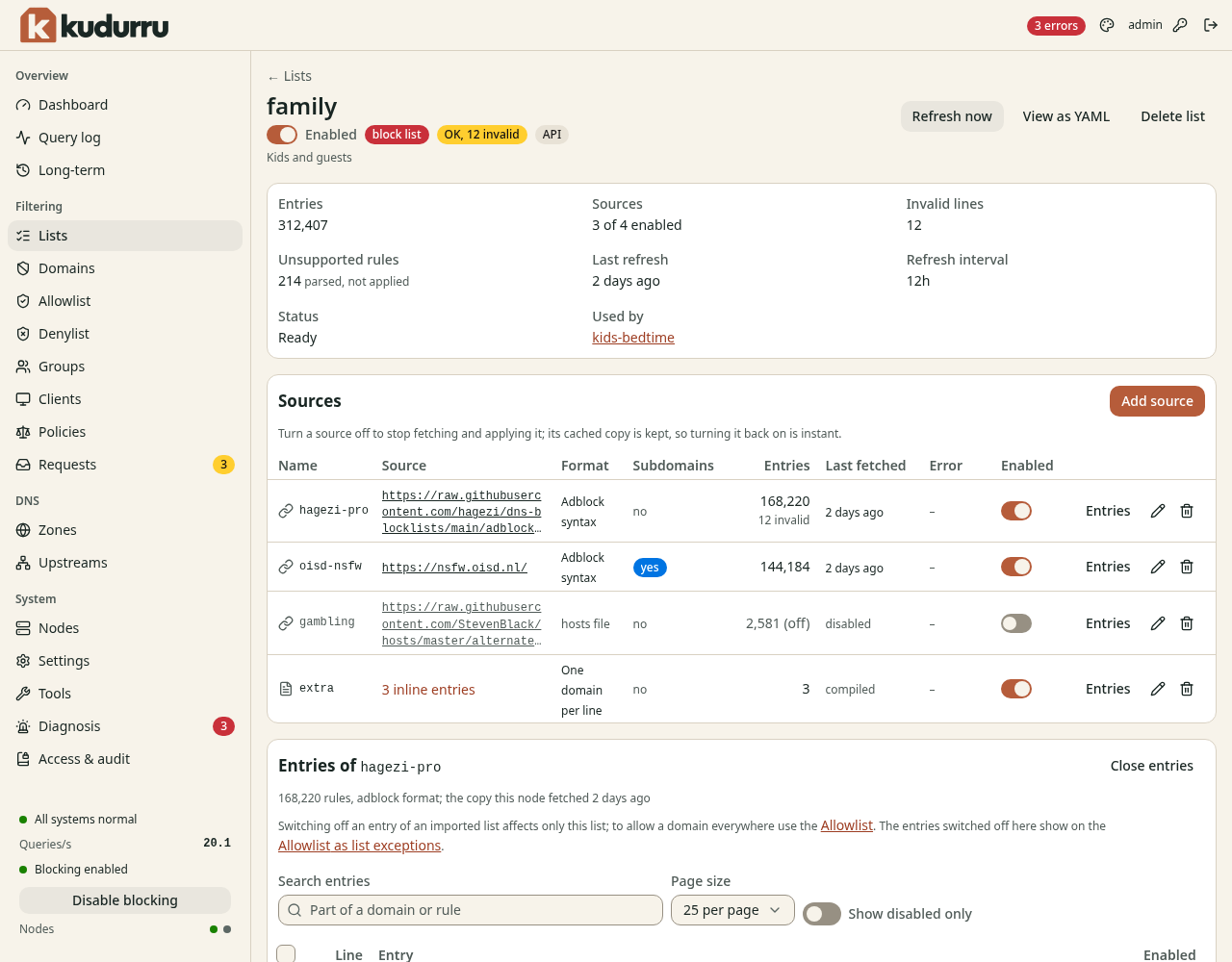
Figure 5. The entries of a source.
The change affects only this list. If another list has the same name, that list still blocks it. To let a name through everywhere, add it to the Allowlist.
Allow a name
The Allowlist and the Denylist hold single names that you decide. The page Domains shows both together.
Open Filtering > Allowlist. Figure 6 shows the page.
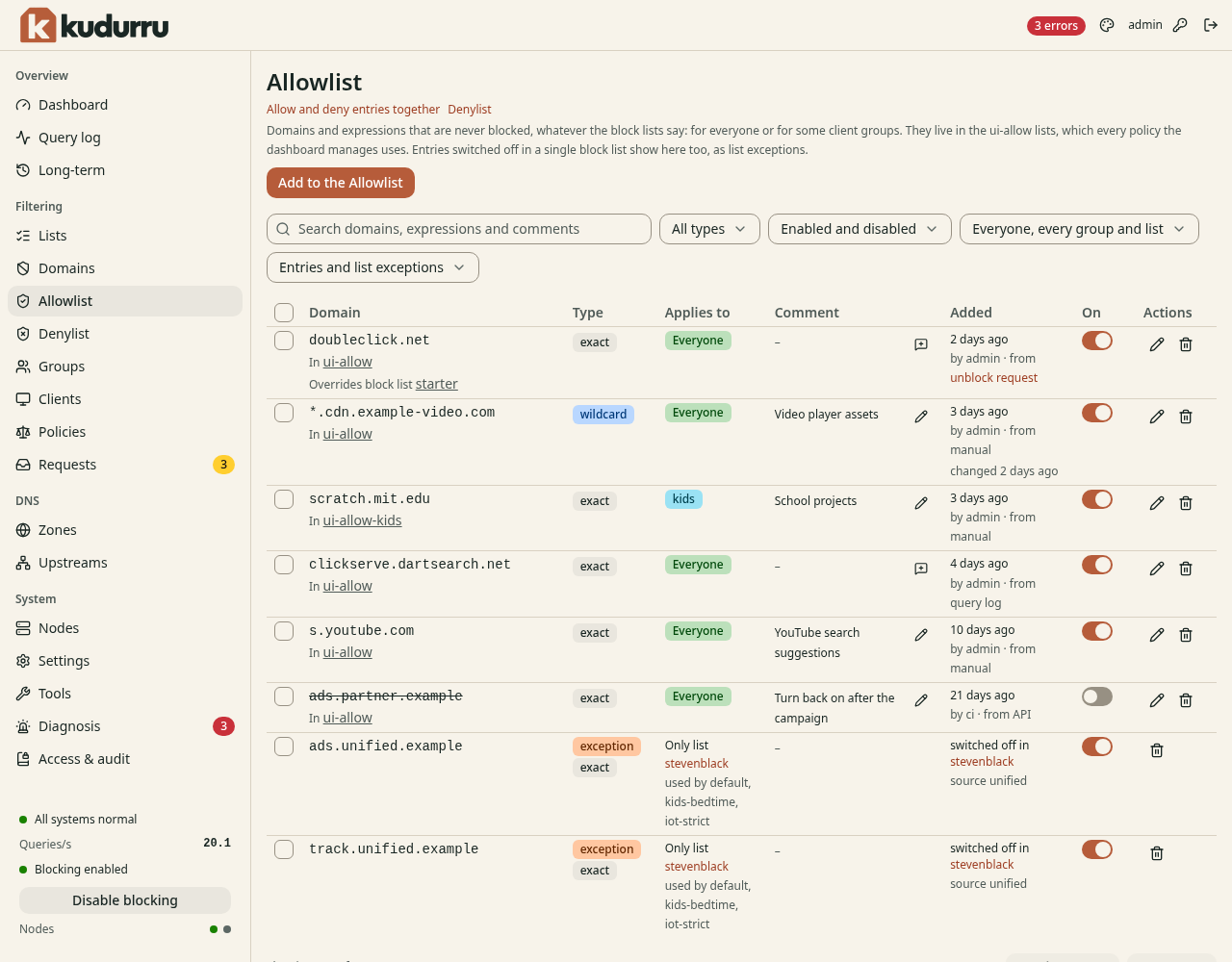
Figure 6. The page Allowlist.
The three types of entry are:
| Type | Example | Matches |
|---|---|---|
| Exact domain | ads.example.com | The name only |
| Wildcard | *.example.com | example.com and each name below it |
| Regular expression | ^ads?[0-9]*\. | Each name that the expression matches |
Add a name
- Open Filtering > Allowlist, Denylist or Domains.
- Click Add to the Allowlist, Add to the Denylist or Add domains.
- In Action, select Allow or Deny. This field shows only on the page Domains.
- Select the Type.
- Enter one or more names in Domains. Use one line for each name.
- In Applies to, select Everyone or Some client groups.
- Enter a Comment if you want.
- Click Add.
Figure 7 shows the dialog.
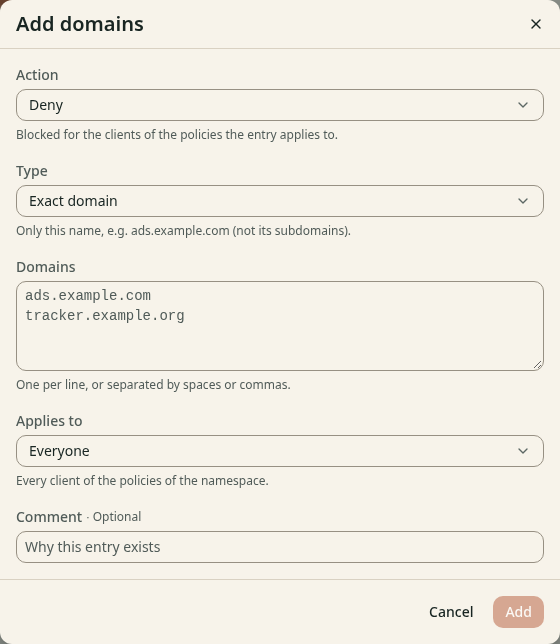
Figure 7. The dialog Add domains.
An allow entry wins over every block list of the client and over the blocked services. A deny entry blocks like a block list, unless an allow list allows the name.
Change an entry
Each row of the table has these controls:
- The switch On turns the entry on or off. An entry that is off stays on the page and does not apply.
- The pencil icon opens a dialog. Use it to change the entry.
- The bin icon deletes the entry.
To change many entries, select the check boxes in the first column. The bulk actions Enable, Disable and Delete show above the table.
The filters above the table limit the rows. You can filter by type, by the state of the switch, by the scope, and by Entries or list exceptions.
List exceptions
The page Allowlist also shows the entries that you turned off in a single block list. The label for these rows is exception. The row shows the list and the other lists that still match the name. The switch of an exception is on while the entry is off in its list.
Where the entries are stored
kudurru stores the entries in lists with the name ui-allow and ui-deny.
There is one list for all clients. There is one more list for each client
group that has its own entries, for example ui-allow-kids. kudurru adds
these lists to the policies for you.
NOTE: kudurru cannot change a policy that is managed by file or managed by Kubernetes. The page Domains shows the message Not applied for and the name of the policy. Add the list to the policy in the file or in the resource.
Use the command line
| Task | Command |
|---|---|
| List the lists | kudurru lists list |
| Find the lists that have a name | kudurru lists search ads.example.com |
| Fetch a list now | kudurru lists refresh <name> |
| Allow a name | kudurru lists allow example.com |
| Deny a name | kudurru lists deny ads.example.com |
Chapter 10 explains how to sign in with the command.