
5. Groups, clients and policies
This chapter shows how to give different rules to different devices. You make a client group, you put clients in it, and you make a policy for the group.
Before you start: You have the role Operator or Admin. At least one block list exists (Chapter 4).
How the parts work together
- A client is a device. kudurru knows a client by the address that it sends queries from.
- A client group is a set of clients. A client is in a group when one of the matchers of the group matches it.
- A policy says which lists and services apply to which client groups.
A client that no group claims is in the group default. The policy
default applies to this group.
A client can be in one group only. If more than one group matches, the most exact matcher wins. An exact address wins over a range. A range wins over a client ID.
A group can have more than one policy. When more than one policy is active for a client, kudurru uses these rules:
- The policy with the highest priority decides the block response, the upstream group and safe search.
- kudurru merges the lists of all the active policies.
See the clients
Open Filtering > Clients. Figure 1 shows the page.
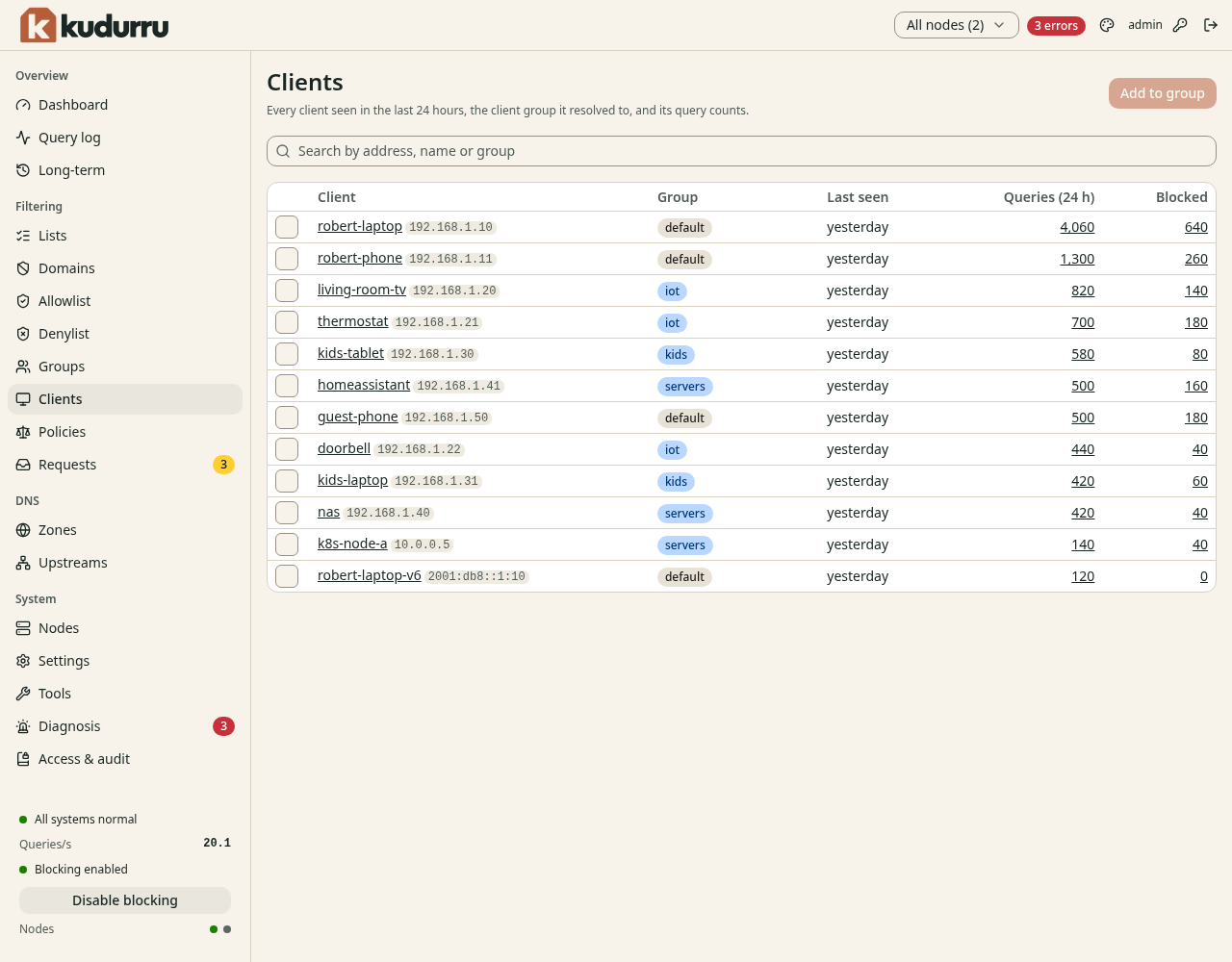
Figure 1. The page Clients.
The page lists each client that sent a query in the last 24 hours. Click a name to open the page of the client. Click a number to open the query log for that client.
Read the page of a client
The page of a client (Figure 2) shows what kudurru does for this client.
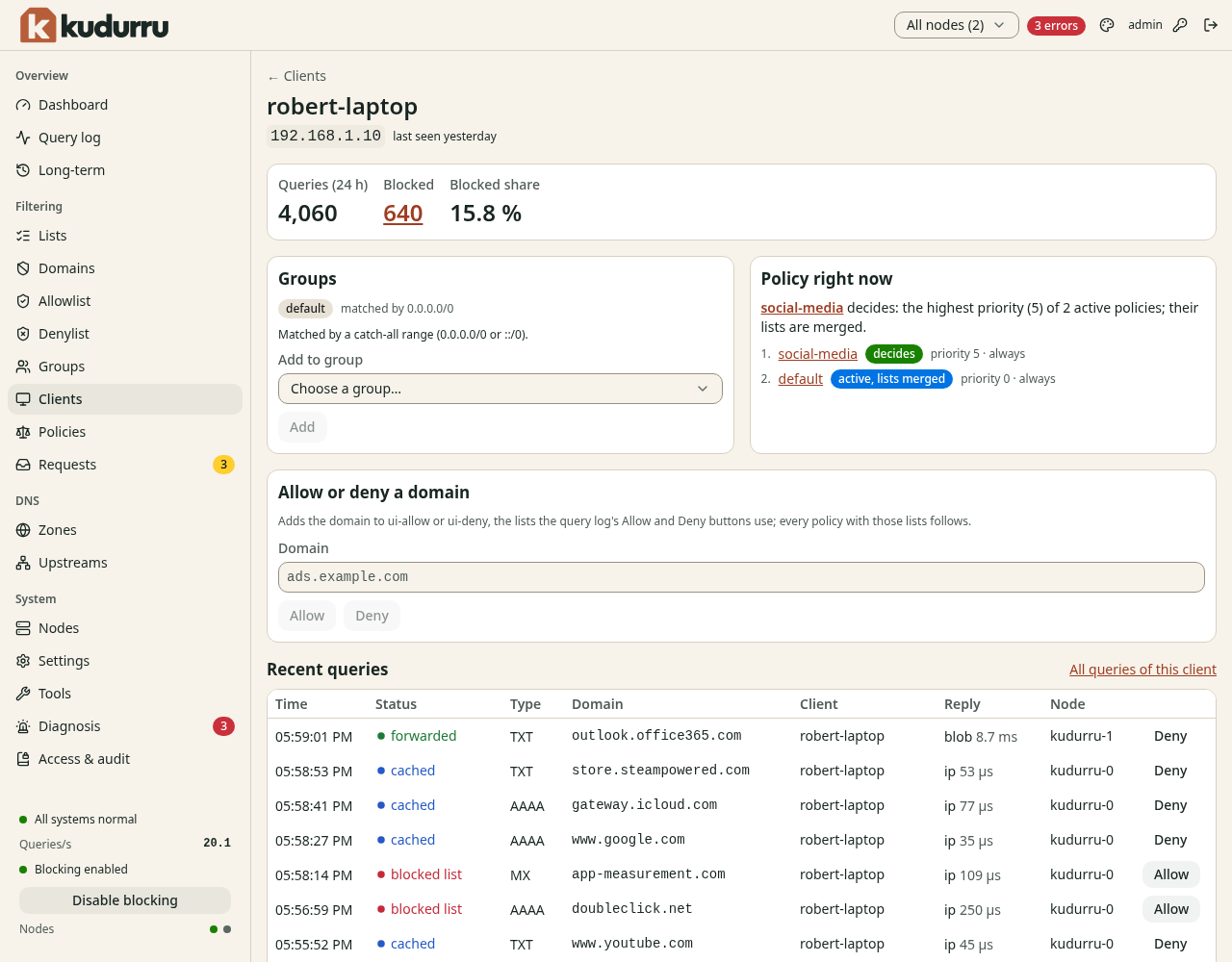
Figure 2. The page of a client.
| Section | Meaning |
|---|---|
| Statistics | The number of queries and blocked queries in the last 24 hours |
| Groups | The group of the client and the matcher that matched it |
| Policy right now | The policies that apply now. The policy that has the label decides sets the block response. |
| Allow or deny a domain | Add a name to the Allowlist or the Denylist |
| Recent queries | The latest queries of this client |
Use Policy right now when a client gets rules that you did not expect.
See the groups
Open Filtering > Groups. Figure 3 shows the page.
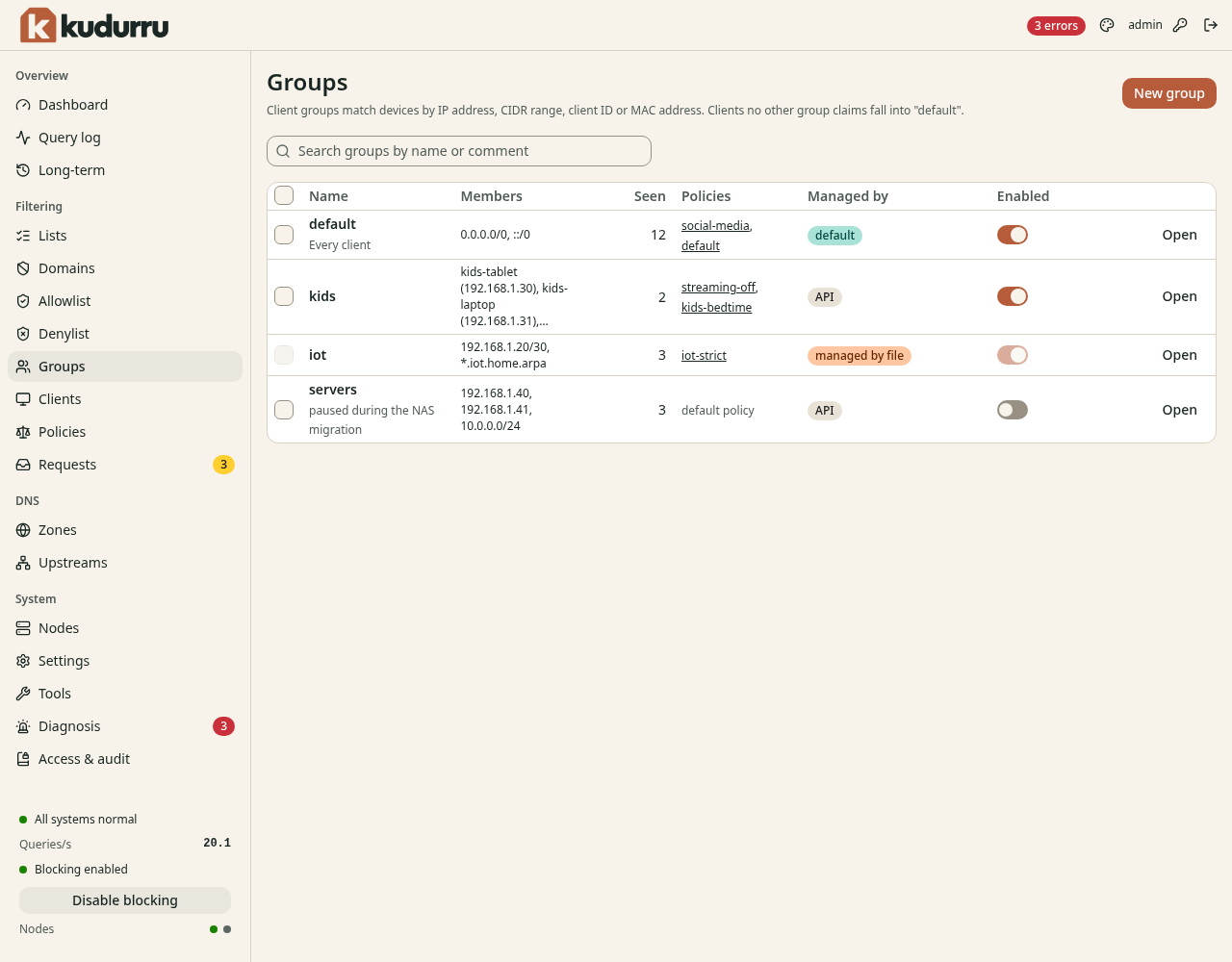
Figure 3. The page Groups.
The switch Enabled turns a group on or off. The column Policies shows the policies that apply to the group.
Create a client group
- Open Filtering > Groups.
- Click New group. A wizard opens.
- On the step Name, enter a Name. Click Next.
- On the step Members, add the matchers (see below). Click Next.
- On the step Policies, select the policies that apply to the group. Click Next.
- On the step Review, click Create group.
Figure 4 shows the step Members.
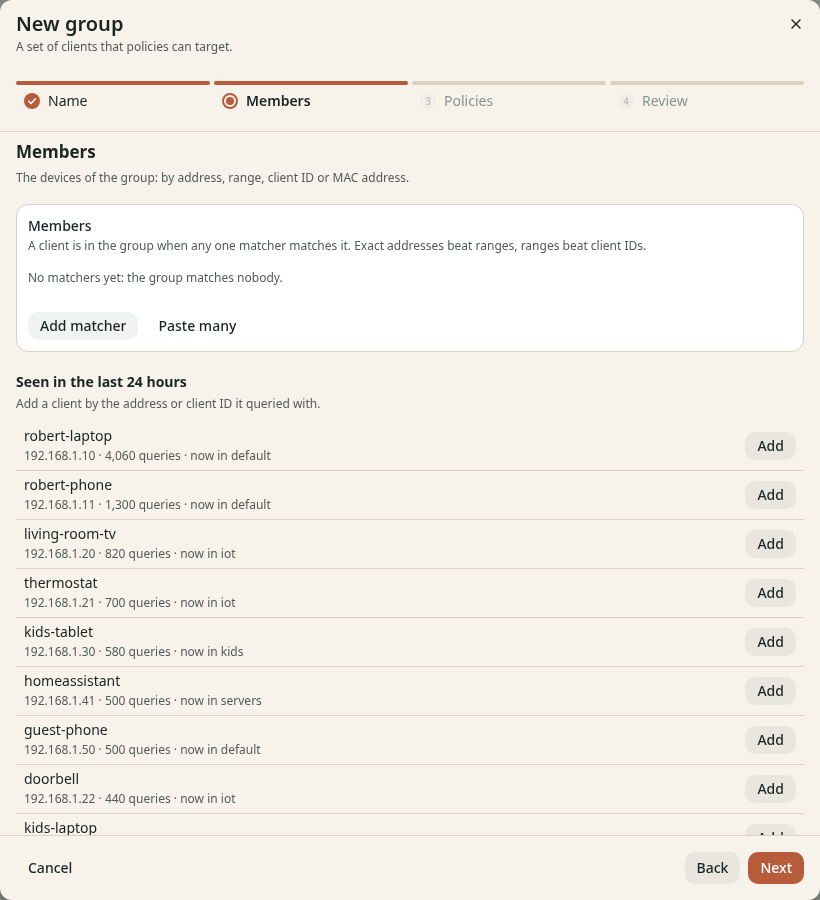
Figure 4. The step Members of the wizard.
A matcher has a kind and a value.
| Kind | Value | Matches |
|---|---|---|
| IP address | 192.168.1.30 | One device |
| CIDR range | 192.168.1.0/24 | Each address in the range |
| Client ID | A name that the device sends | Devices that use DNS over TLS or DNS over HTTPS with a client ID |
| MAC address | aa:bb:cc:dd:ee:ff | A device, only when the transport gives the MAC address |
To add a client that you already see, click Add next to the client in the list Seen in the last 24 hours. To add many values, click Paste many.
CAUTION: A matcher for a MAC address works only when the transport gives the MAC address. Version 0.1 has no client inventory for this. Use an IP address or a range.
NOTE: Give a fixed address to each client that you put in a group. Use a DHCP reservation. If the address changes, the client leaves the group.
Change a group
Open Filtering > Groups, and click Open in the row of the group. Figure 5 shows the page of a group.
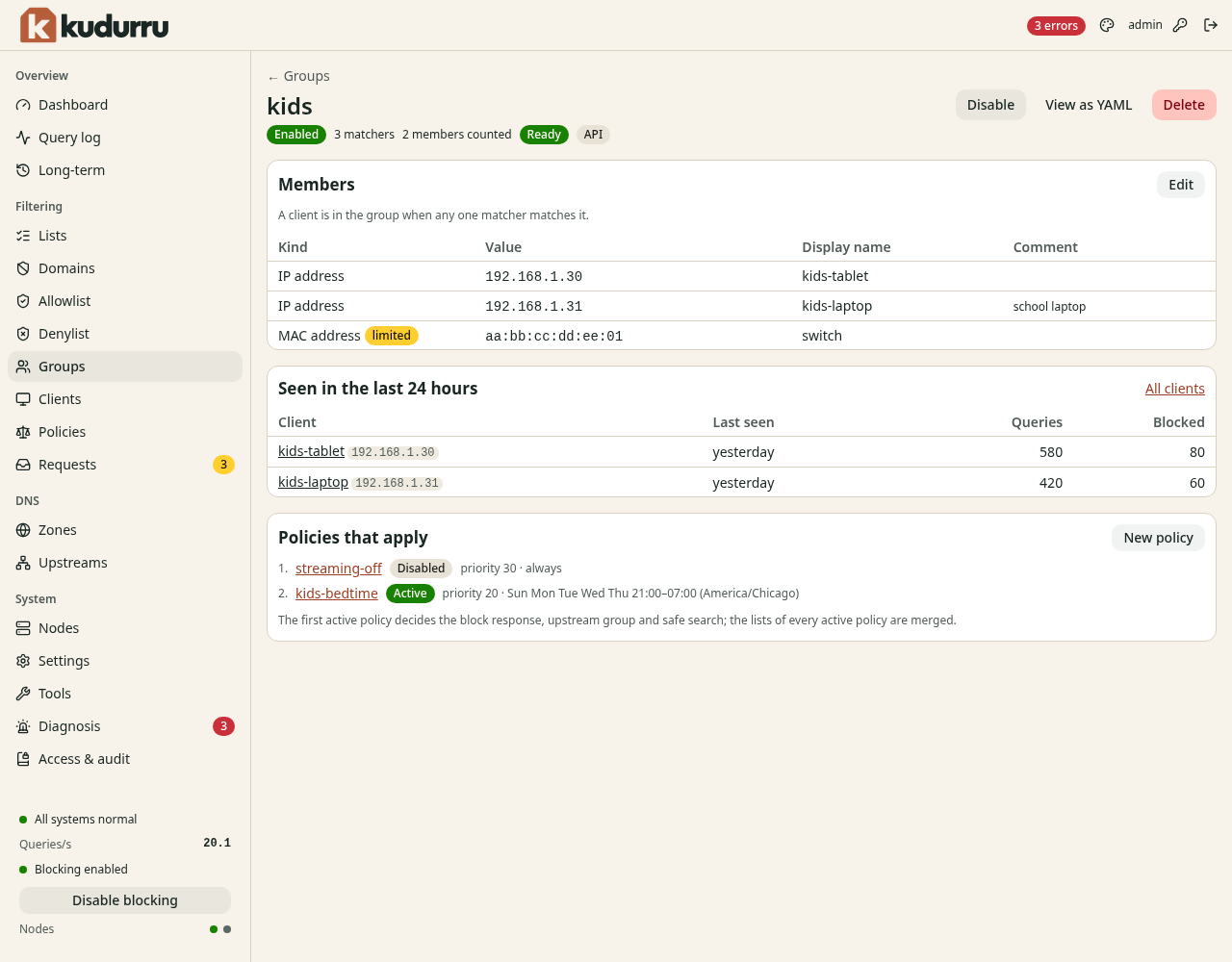
Figure 5. The page of a group.
- Click Edit in Members to change the matchers.
- Click New policy in Policies that apply to make a policy for this group.
- Click Disable to stop the group. The clients then fall into other groups.
- Click Delete to remove the group.
You can also add a client to a group from the page Clients. Select the check box of the client, click Add to group and select the group. On the page of a client, use Add to group in the section Groups.
Create a policy
- Open Filtering > Policies.
- Click New policy. A wizard opens with six steps.
- Do the steps that the sections below describe.
- On the step Review, read the summary. Click Create policy.
Figure 6 shows the page Policies.
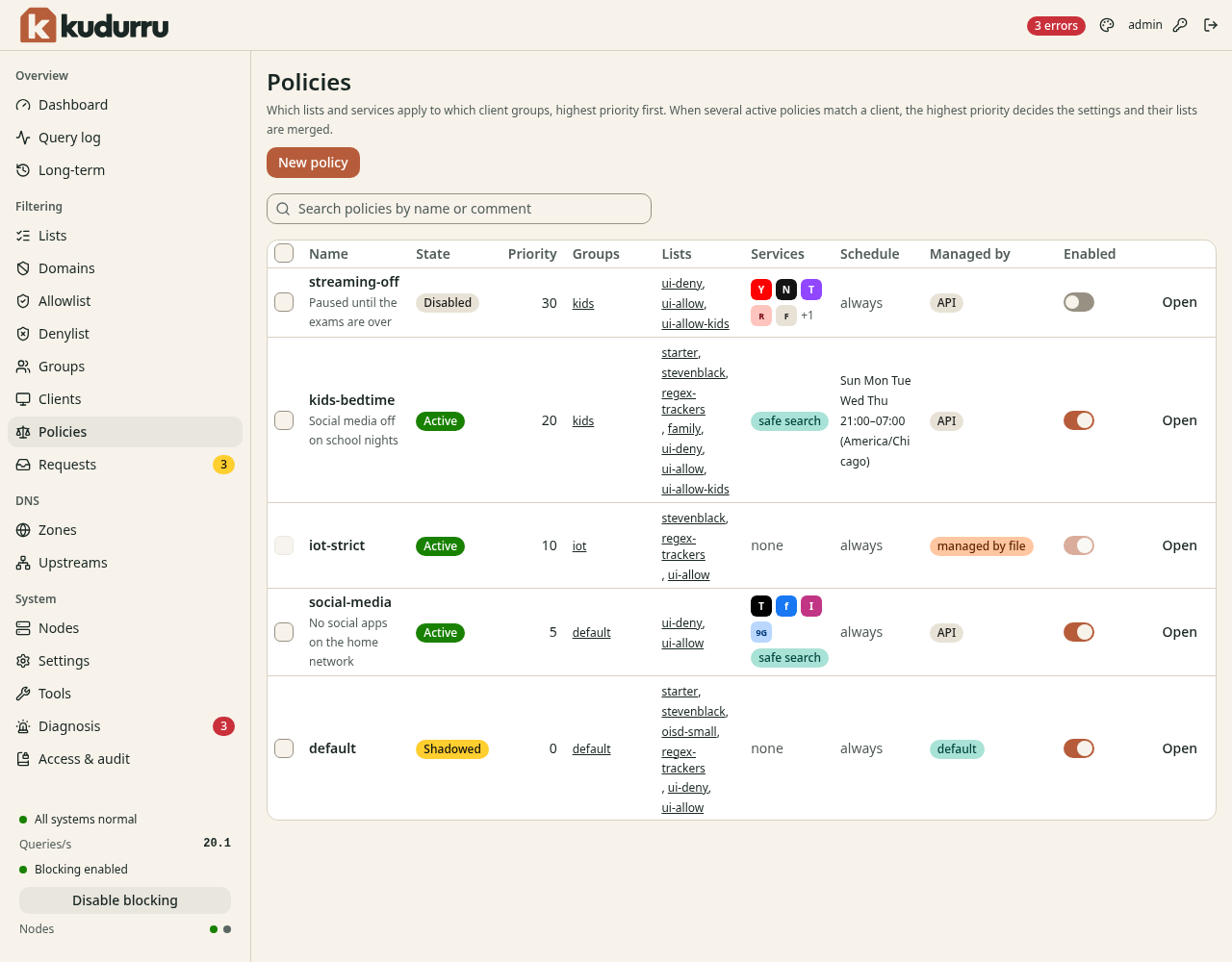
Figure 6. The page Policies.
The column State has these values:
| State | Meaning |
|---|---|
| Active | The policy applies now. |
| Disabled | The switch Enabled is off. |
| Shadowed | The policy is active. A policy with a higher priority takes the settings for the same groups. kudurru still merges the lists. |
| Scheduled off | The time window of the policy is not open now. |
Step 1: Who
- Enter a Name. Use lower-case letters, digits and dashes.
- Select the Client groups that get this policy.
- Enter a Priority from 0 to 100000. The highest number wins.
- Click Next.
CAUTION: A policy with no client group applies to nobody. The wizard does not let you continue without a group.
Figure 7 shows this step.
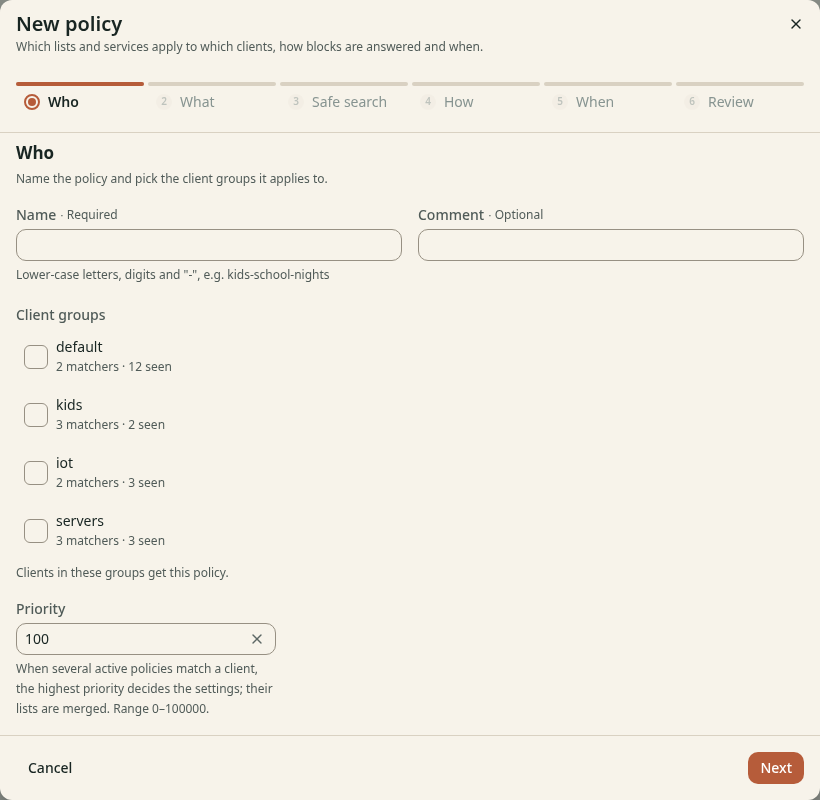
Figure 7. The step Who of the wizard.
Step 2: What
Figure 8 shows this step.
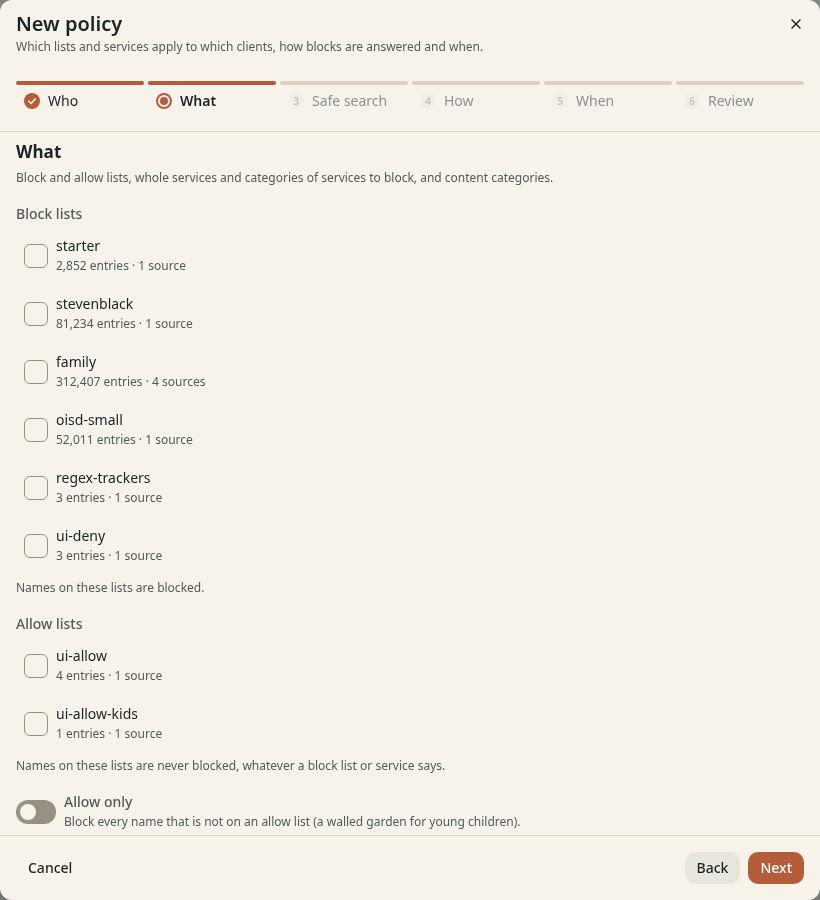
Figure 8. The step What of the wizard.
- Select the Block lists that apply.
- Select the Allow lists that apply.
- To block only the names on allow lists, turn on Allow only.
- Scroll down to select blocked services, categories and content categories (see Block services).
- Click Next.
Allow only blocks each name that is not on an allow list. Use it as a walled garden for young children.
Step 3: Safe search
This step is optional. Turn on Enforce safe search to make the search engines show safe results. kudurru gives the search engines of Google, Bing, DuckDuckGo, Brave Search, Yandex and Pixabay the address of their safe-search service. For YouTube you can select a Level.
NOTE: Browsers that use their own secure DNS service, and VPN programs, do not use kudurru. Then safe search does not work for them.
Figure 9 shows this step.
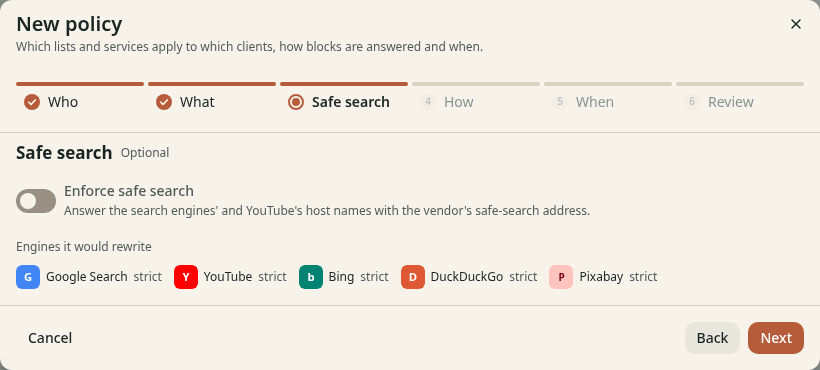
Figure 9. The step Safe search of the wizard.
Step 4: How
This step is optional (Figure 10).
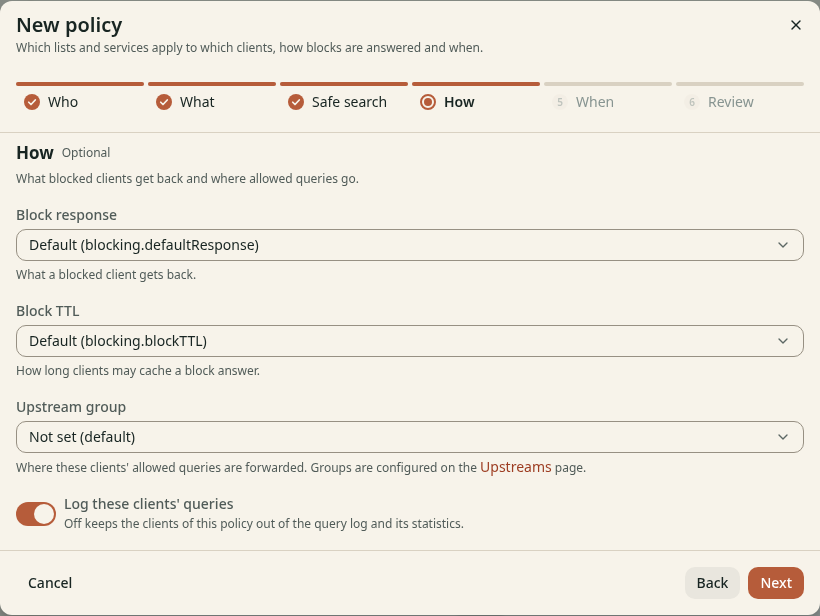
Figure 10. The step How of the wizard.
| Field | Meaning |
|---|---|
| Block response | What a blocked client gets back. The default is the setting blocking.defaultResponse. |
| Block TTL | How long a client can keep a block answer |
| Upstream group | Where the allowed queries of these clients go |
| Log these clients' queries | When this switch is off, the queries of these clients are not in the query log or the statistics. |
Step 5: When
This step is optional. By default the policy applies at all times.
- Select Only during a time window.
- Select the days.
- Enter the Start and the End time.
- Select the Time zone.
A window can cross midnight. For example, a window from 21:00 to 07:00 on Sunday to Thursday blocks social media on school nights.
Figure 11 shows this step.
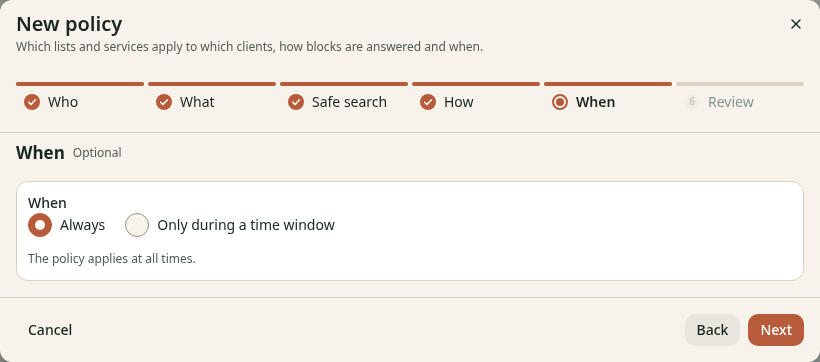
Figure 11. The step When of the wizard.
Step 6: Review
Read the summary. Click Create policy. The dashboard opens the page of the policy.
Block services
A service is a group of names that belong to one product, for example YouTube or TikTok. kudurru has a catalogue of services in categories such as AI, Social media, Messaging, Video and streaming and Gaming.
- Open the page of a policy.
- Scroll down to Blocked services. Figure 12 shows the section.
- Select a category tab, or use Search by name or domain.
- Click a service tile to block it. Click it again to allow it.
- To block all the services of a category, turn on Block the whole category.
- Click Save services.
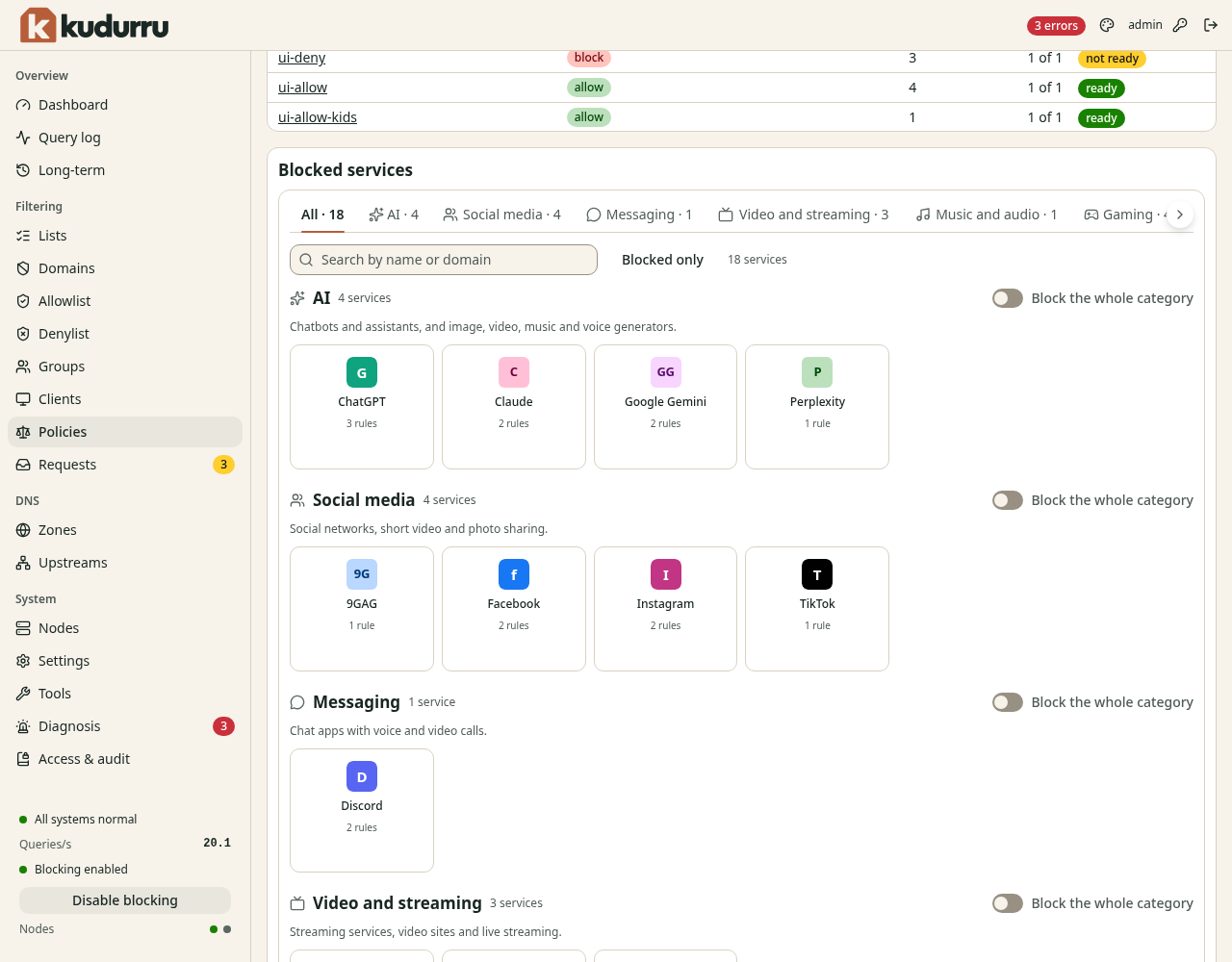
Figure 12. The section Blocked services.
A blocked category also blocks the services that a catalogue update adds to it later. If you click a tile in a blocked category, kudurru makes an exception for this service.
Some services need another service. For example, Fortnite signs in through Epic Games. The grid then offers to block both.
An allow list wins over a blocked service. To allow music.youtube.com and
block the rest of YouTube, add music.youtube.com to an allow list of the
policy.
The step What of the wizard also has Content categories. These are large lists by topic, for example Adult content, Gambling, Malware and Phishing. When you turn one on, kudurru downloads the list from the Block List Project. Some of these lists are large.
CAUTION: The malware list has about 2.6 million names. It needs several hundred MB of memory on each node.
Check a policy
Open the page of the policy (Figure 13).
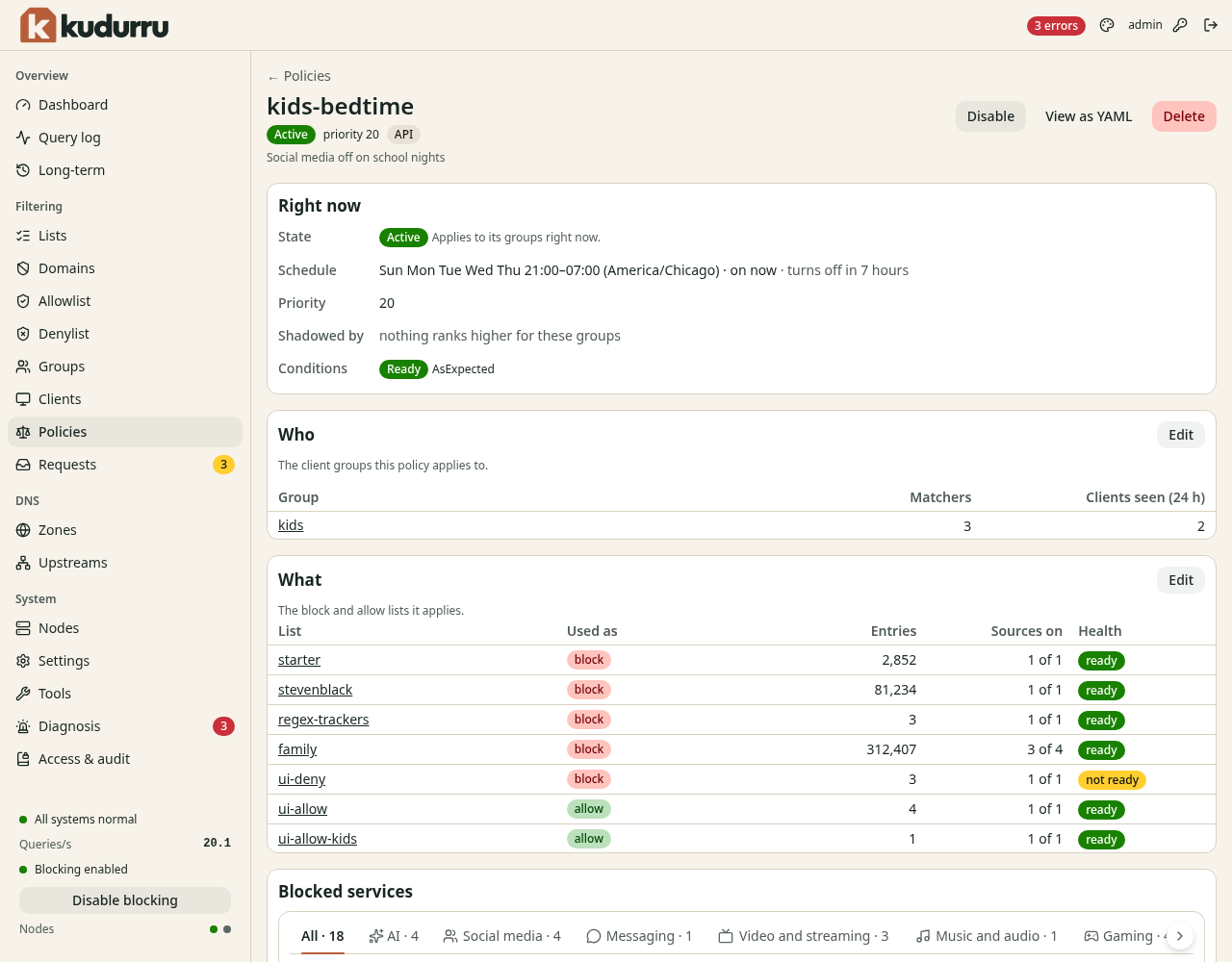
Figure 13. The page of a policy.
The section Right now shows if the policy applies. Shadowed by names a policy with a higher priority that takes the same groups. Each part of the page has an Edit button. Disable turns the policy off. Delete removes it.
To check the result for one client, open the page of the client. Policy right now shows which policy decides. You can also use Tools > Query (dig) with the field As client (Chapter 8).
Use the command line
| Task | Command |
|---|---|
| List groups | kudurru get clientgroups |
| List policies | kudurru get policies |
| Show one policy with its state | kudurru describe policy <name> |
| Change objects from a file | kudurru apply -f policy.yaml |
| Test a query as a client | kudurru query ads.example.net --client 192.168.1.23 |