
7. Zones and upstreams
This chapter shows how to make your own DNS names, and how to set the external DNS servers that kudurru asks.
Before you start:
- To change zones, you have the role Admin. You can also have the role Zone admin for one zone.
- To change upstreams, you have the role Admin.
Zones
A zone is a part of the DNS name space. kudurru has two types of zone.
| Type | Meaning |
|---|---|
| Primary | kudurru is the authority. You keep the records in kudurru. kudurru answers from these records. |
| Forward | kudurru sends the queries for the zone to an upstream group. Use it for a company or Active Directory zone. |
A block list cannot block a name in a primary zone. The records of your own zone always get an answer.
NOTE: In this release the wizard makes primary and forward zones. Secondary,
stub and catalog zones need a YAML file and the command kudurru apply.
See the zones
Open DNS > Zones. Figure 1 shows the page.
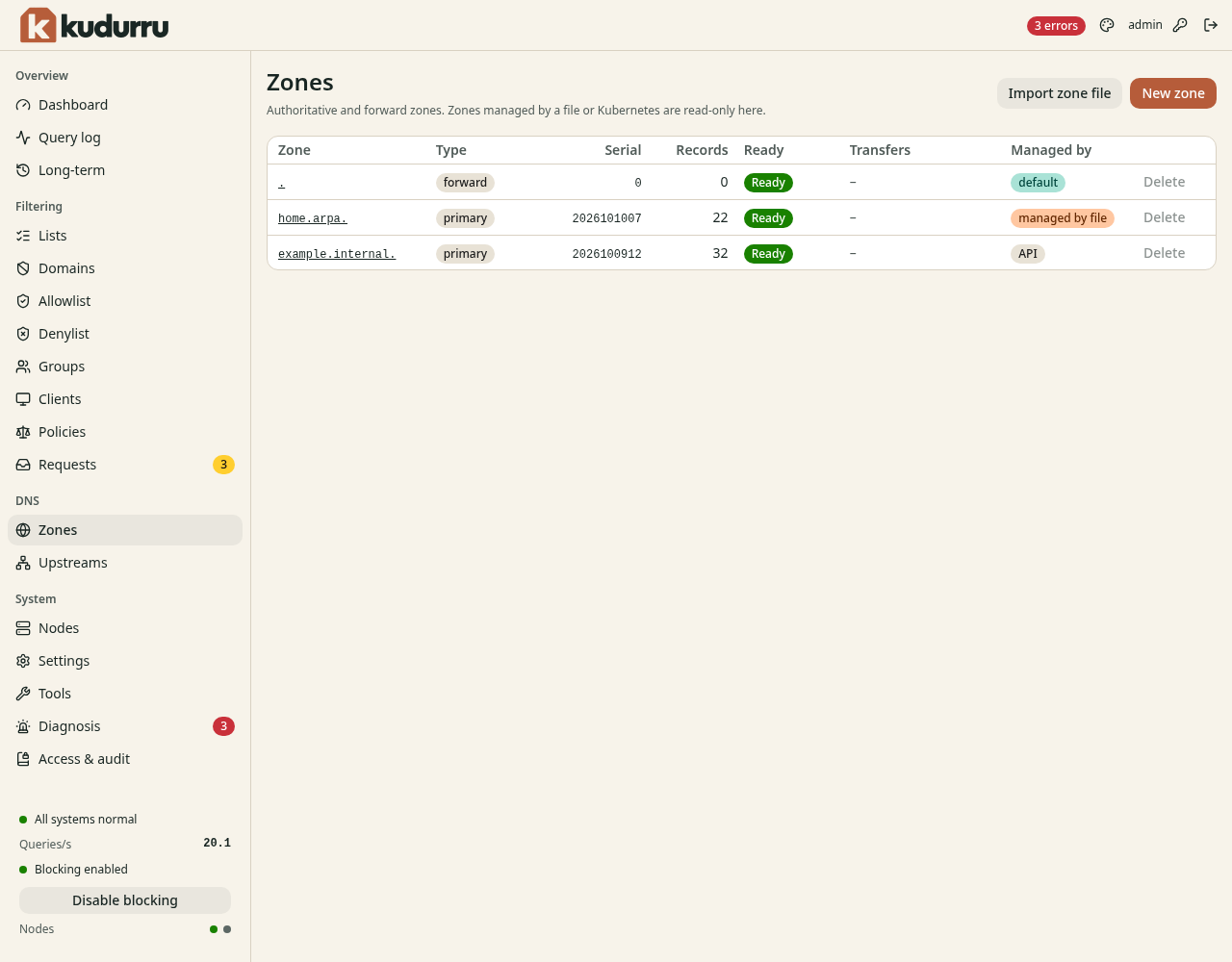
Figure 1. The page Zones.
The zone . is the root zone. It is a forward zone that the system makes.
It sends all other queries to the upstream group default.
The column Serial shows the SOA serial. kudurru increases it when you change a record. Ready shows Ready when the zone answers.
Create a primary zone
- Open DNS > Zones.
- Click New zone. A wizard opens.
- On the step Type, select Primary. Click Next.
- On the step Apex, enter the Zone name, for example
home.arpaorlab.example. Click Next. - On the step Records and access, change a value only if you need to. Click Next.
- On the step Review, click Create zone.
Figure 2 shows the step Type.
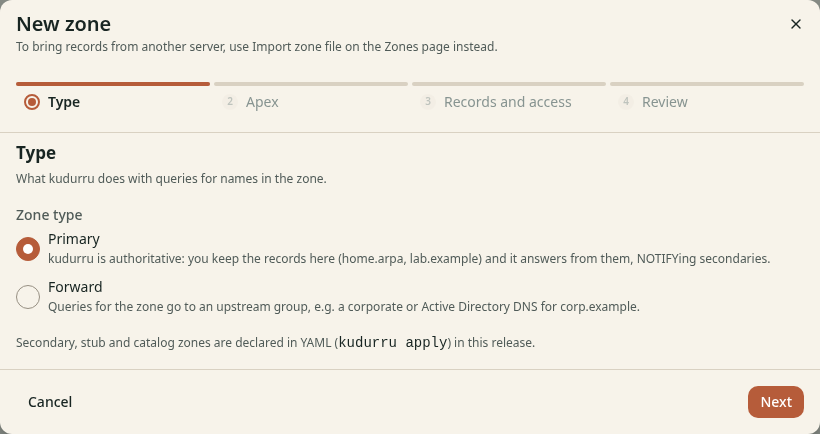
Figure 2. The step Type of the wizard.
Figure 3 shows the step Records and access.
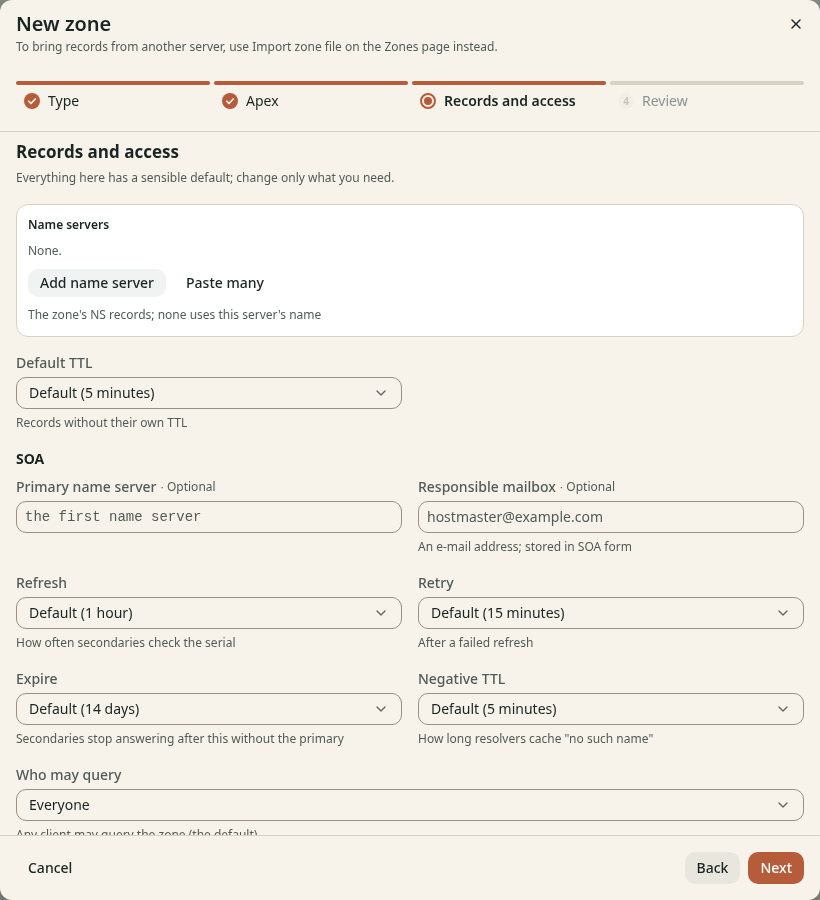
Figure 3. The step Records and access of the wizard.
All the fields on this step have a default.
| Field | Meaning |
|---|---|
| Name servers | The NS records of the zone. If you add none, kudurru uses its own name. |
| Default TTL | The TTL for records that have no TTL of their own |
| Primary name server, Responsible mailbox | Fields of the SOA record |
| Refresh, Retry, Expire, Negative TTL | Times for secondary servers and for caches |
| Who may query | The clients that can query the zone (see the table below) |
The choices for Who may query are:
| Choice | Meaning |
|---|---|
| Everyone | Any client can query the zone. This is the default. |
| Private networks only | Only clients with private, loopback or link-local addresses |
| Clients in the ACL | Only the clients that the ACL allows |
| Zone name servers only | Only the addresses of the NS records of the zone |
| Name servers and the ACL | The name servers and the clients that the ACL allows |
| Nobody | kudurru refuses all queries. The zone stays defined. |
The Query ACL is a list of addresses or ranges. The first match wins.
An exclamation mark in front of an entry denies it, for example
!192.168.1.66.
Create a forward zone
- Open DNS > Zones. Click New zone.
- On the step Type, select Forward. Click Next.
- On the step Apex, enter the Zone name. Click Next.
- On the step Upstream, select the Upstream group.
- Select DNSSEC validation: Default, Validate or Do not validate. Click Next.
- On the step Review, click Create zone.
The upstream group must exist. Create an upstream group first if it does not.
Add a record
- Open DNS > Zones.
- Click the name of the zone.
- Click Add record. A dialog opens (Figure 4).
- Enter the Name. The name is relative to the zone. Use
@for the apex of the zone. - Select the Type, for example A (IPv4 address).
- Select the TTL, or keep Zone default.
- Enter the value in the field under Target 1.
- Click Add record.
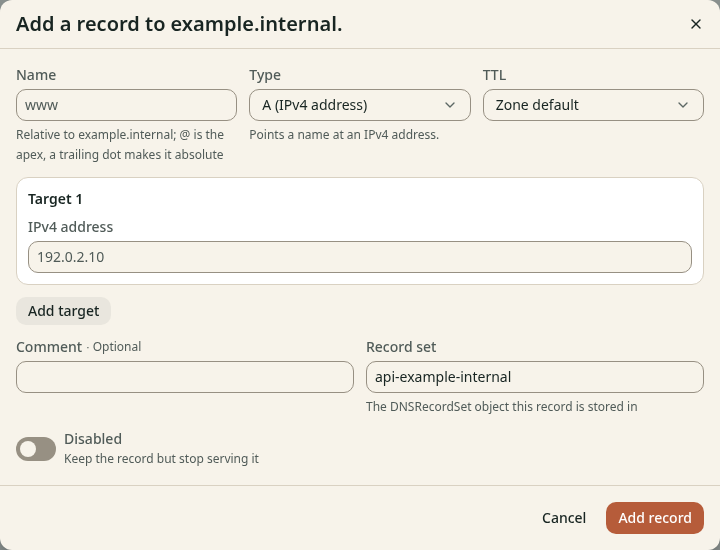
Figure 4. The dialog Add a record.
To add a second value for the same name and type, click Add target. To keep a record but remove it from the answers, turn on Disabled.
The field Record set shows the object that stores the record. The
default name is api- and the name of the zone.
Figure 5 shows the page of a zone.
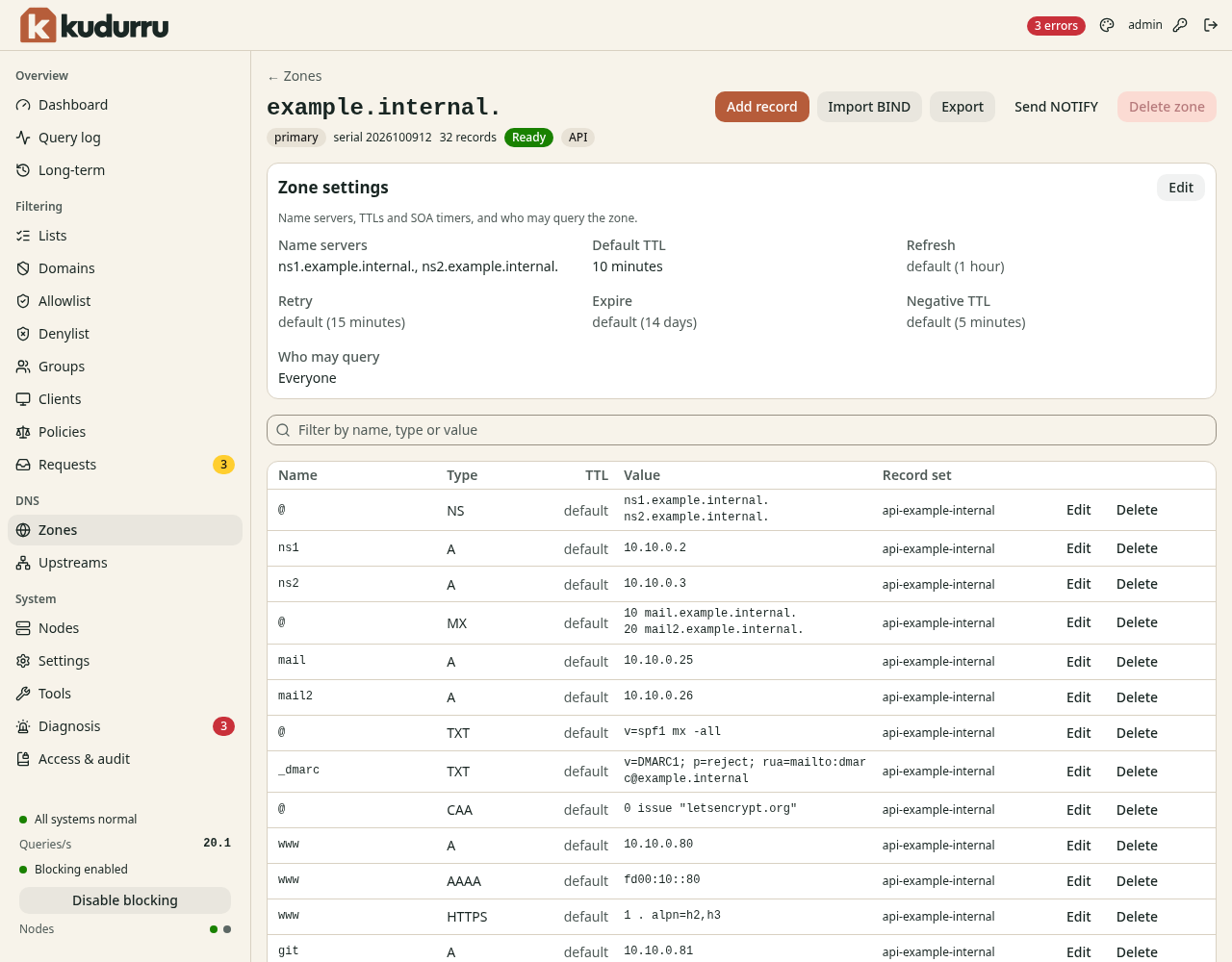
Figure 5. The page of a zone.
The page has these functions:
- Filter by name, type or value limits the rows.
- Edit and Delete in a row change or remove one record.
- Import BIND adds the records of a BIND zone file.
- Export downloads the zone in BIND format.
- Send NOTIFY tells the secondary servers of the zone to fetch it.
Import a zone file
- Open the page of the zone, or the page Zones.
- Click Import BIND or Import zone file.
- Select a file, or paste the text of the zone.
- Click Import.
CAUTION: Check the result in the table of records after the import.
Zones that you cannot change
A zone with the owner managed by file or managed by Kubernetes is read-only. The buttons are gray. Change the file or the resource.
Upstreams
An upstream is an external DNS server. kudurru asks an upstream when the name is not in a zone and not in the cache. Upstreams are in groups. A group has a list of servers, a strategy and a time limit.
Open DNS > Upstreams. Figure 6 shows the page.
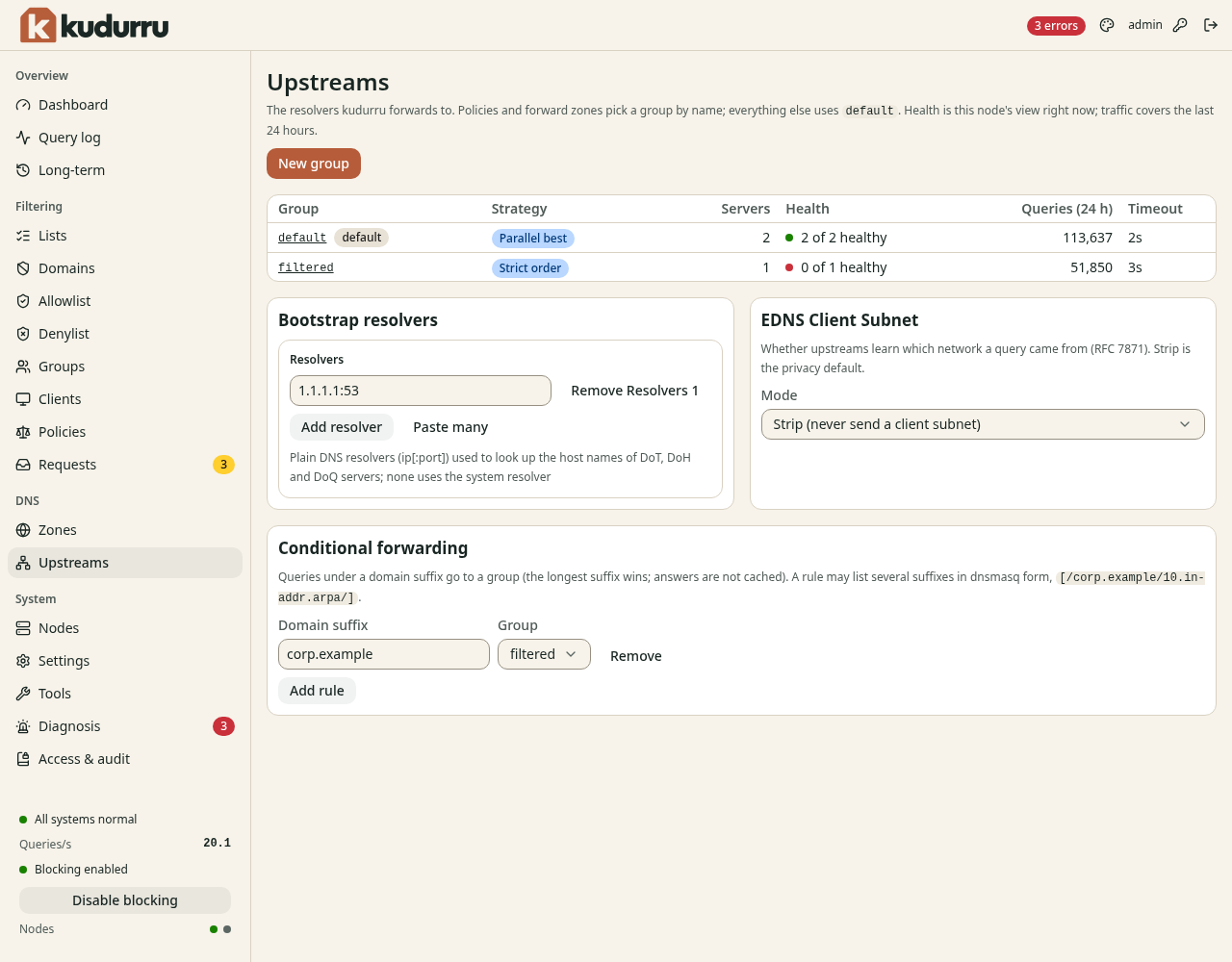
Figure 6. The page Upstreams.
| Column | Meaning |
|---|---|
| Group | The name of the group. The group default gets each query that no other rule sends elsewhere. |
| Strategy | How kudurru selects a server |
| Servers | The number of servers |
| Health | How many servers are healthy now, for this node |
| Queries (24 h) | The number of queries that the group answered |
| Timeout | The time limit for one server |
The strategies are:
| Strategy | Meaning |
|---|---|
| Parallel best | kudurru asks two healthy servers at the same time and uses the first good answer. This is the default. |
| Strict order | kudurru asks the servers in order. It goes to the next server only after a failure. |
| Random | kudurru asks one healthy server, selected at random. |
| Fastest first | kudurru selects by the round-trip time, with a random weight. |
Create an upstream group
- Open DNS > Upstreams.
- Click New group. A wizard opens.
- On the step Provider, select a provider, for example Quad9, or select Custom. Click Next.
- On the step Servers, select the filtering and the Transport. See Figure 8. Click Next.
- On the step Group, enter a Name and select a Strategy. Click Next.
- On the step Review, click Create group.
Figure 7 shows the step Provider.
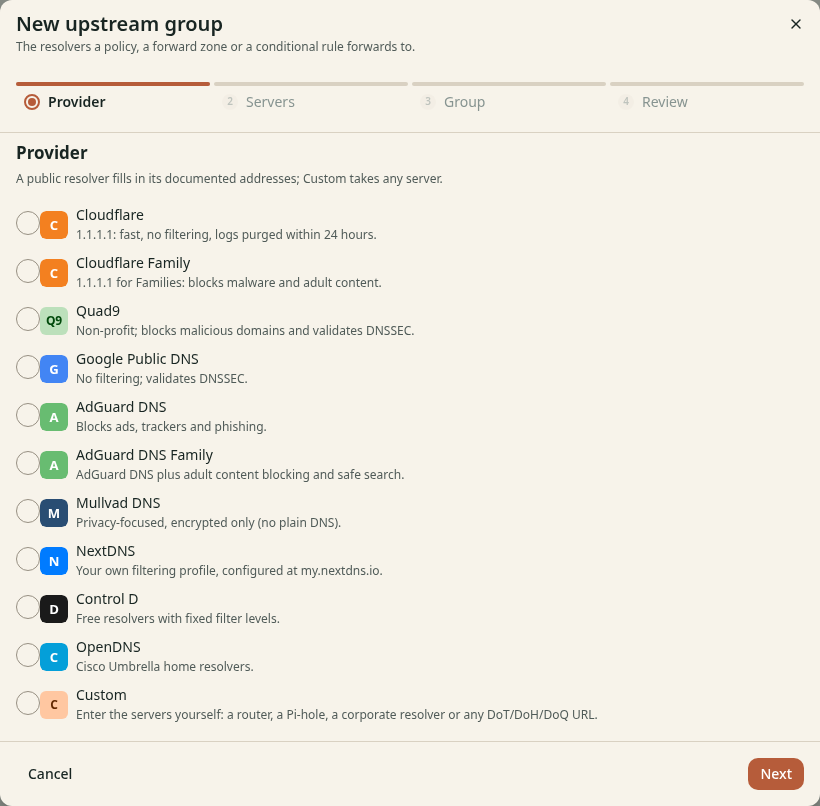
Figure 7. The step Provider of the wizard.
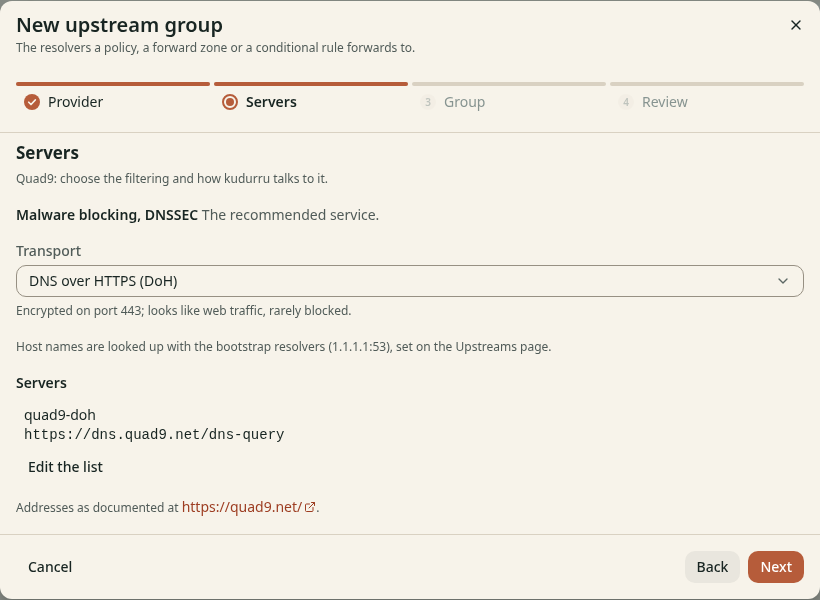
Figure 8. The step Servers of the wizard.
An encrypted transport protects the queries on the way to the upstream. The choices depend on the provider. You can select plain DNS, DNS over TLS (DoT) or DNS over HTTPS (DoH).
With Custom, enter the servers yourself. Use one of these forms:
| Form | Example |
|---|---|
| Plain DNS | 192.168.1.1:53 |
| DNS over TLS | tls://dns.quad9.net |
| DNS over HTTPS | https://dns.quad9.net/dns-query |
| DNS over QUIC | quic://dns.example.net |
| DNS over HTTP/3 | h3://dns.example.net/dns-query |
You can put a display name in front of a server, for example
quad9=tls://dns.quad9.net.
To use the group, select it in a policy (Chapter 5) or in a forward zone, or add a conditional rule (below).
Set the bootstrap resolvers
kudurru must find the address of an upstream that has a host name, for
example dns.quad9.net. For this it uses the bootstrap resolvers.
- In Bootstrap resolvers, click Add resolver.
- Enter a plain DNS server as
address:port, for example1.1.1.1:53. - Click Save.
If you add none, kudurru uses the resolver of the system.
Send a domain to a group
A conditional rule sends the queries for one domain suffix to a group. The longest suffix wins. kudurru does not cache these answers.
- In Conditional forwarding, click Add rule.
- Enter the Domain suffix, for example
corp.example. - Select the Group.
- Click Save rules.
Set EDNS Client Subnet
EDNS Client Subnet decides if upstreams learn the network of the client. The default Strip (never send a client subnet) protects the privacy of your clients. Change it only if you know why.
Read the health of a group
Click the name of a group. The page of the group (Figure 9) shows each server. For each server it shows the health, the round-trip time (RTT), the number of queries and the number of errors.
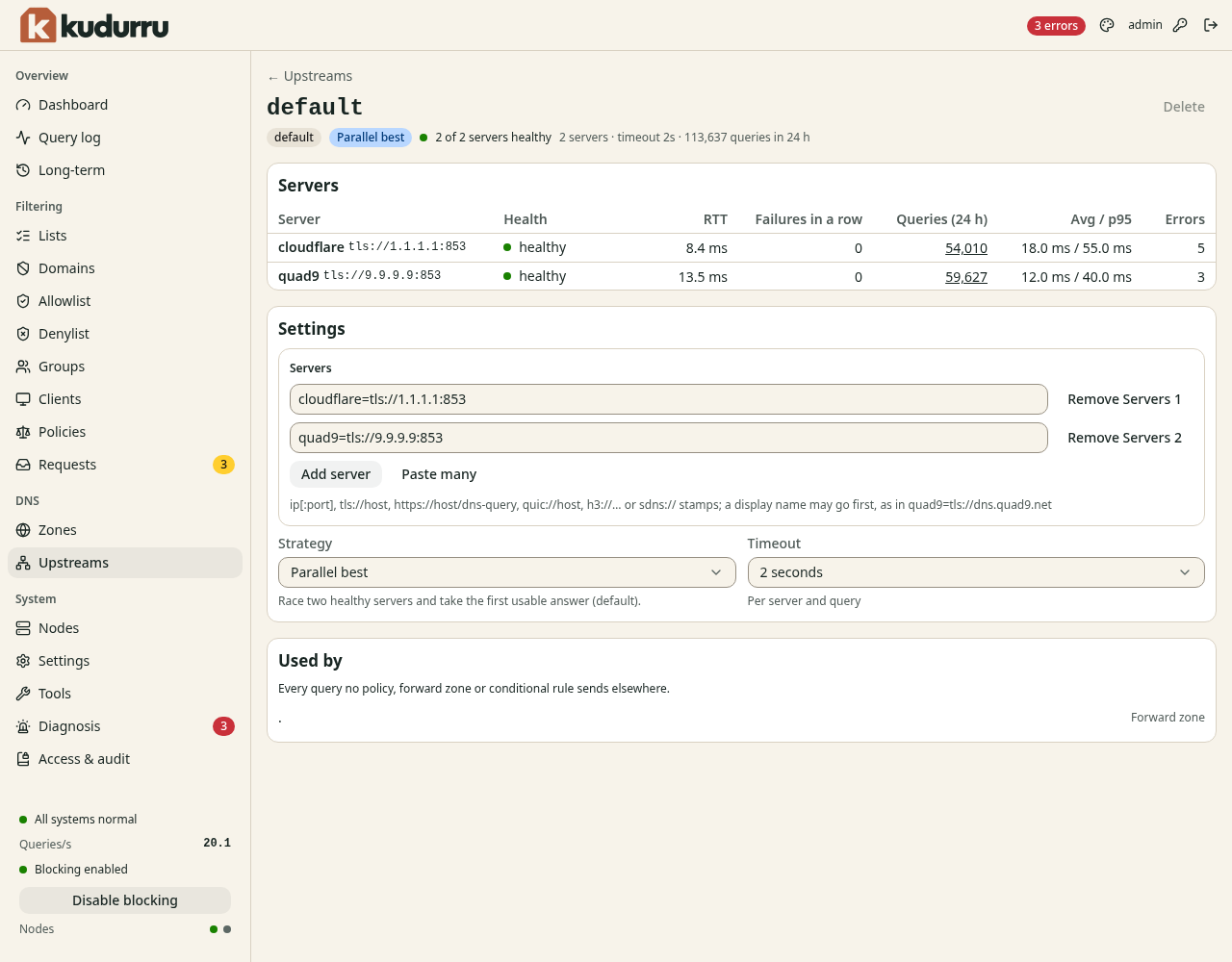
Figure 9. The page of an upstream group.
If a group shows 0 of 1 healthy, the server does not answer. See Chapter 12.
Change or delete a group
- Open the page of the group.
- Change the Servers, the Strategy or the Timeout in Settings.
- Click Save.
The section Used by shows the places that use the group. You cannot
delete a group that is in use, and you cannot delete the group default.
Click Delete to remove a group that is not in use.
Use the command line
| Task | Command |
|---|---|
| List zones | kudurru zones list |
| List the records of a zone | kudurru records list <zone> |
| Add a record | kudurru records add <zone> nas.home.arpa A 192.168.1.10 --ttl 300 |
| Remove a record | kudurru records rm <zone> <name> <type> |
| Import a zone file | kudurru zones import <zone> -f <file> |
| Export a zone | kudurru zones export <zone> |
| Send NOTIFY | kudurru zones notify <zone> |
| Change the upstreams | kudurru settings set upstreams.bootstrap=9.9.9.9,1.1.1.1 |