
Block a domain
Before you start
- You need the
operatororadminrole. - You need the DNS name and the clients that need the rule.
Add a deny entry
- Open Filtering > Denylist.
- Click Add to the Denylist.
- Select the exact domain type in Type.
- Enter the DNS name in Domains.
- Select Everyone or Some client groups in Applies to.
- Enter a reason in Comment.
- Click Add.
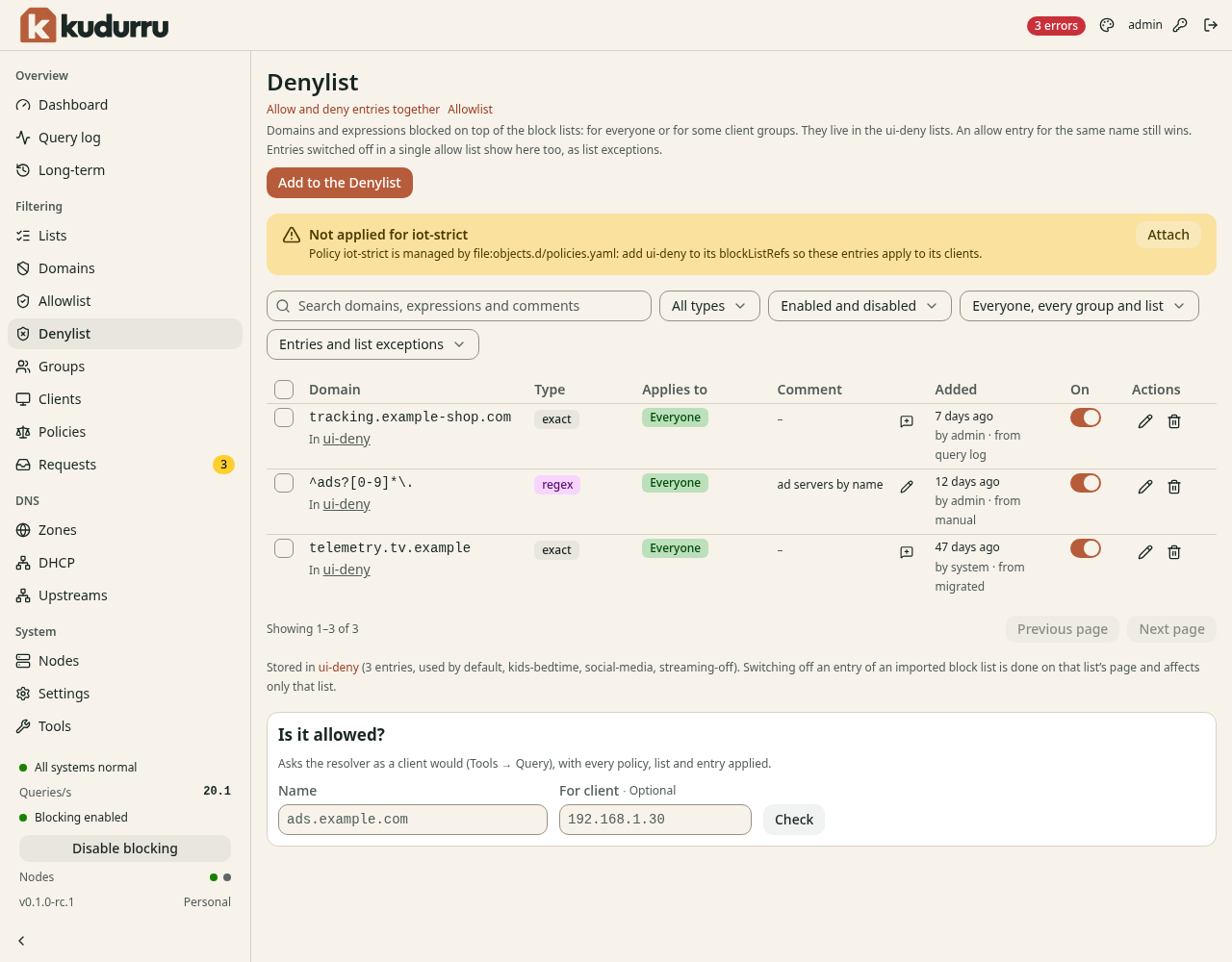
Figure 1. An allow entry still wins over a deny entry for the same name.
Use an exact entry first. A wildcard affects subdomains; a regular expression can affect many unrelated names. Use Search to find an existing entry and its enabled switch to pause it. Use its edit action to change the name, scope or comment.
Check the result
Use Is it allowed? with the name and test client address. Confirm a blocked answer in Query log. If the answer stays permitted, check the Allowlist and the client's policy. If Not applied for names a managed policy, update that policy at its source.