
Find and test domain rules
Before you start
- You need the
viewerrole to read rules. - You need the
operatororadminrole to change them.
Find a rule
- Open Filtering > Domains.
- Enter a domain in Search.
- Select Action to show allow rules, deny rules or both.
- Use Applies to to narrow the client group or list.
- Read the rule's type, scope, comment and enabled state.
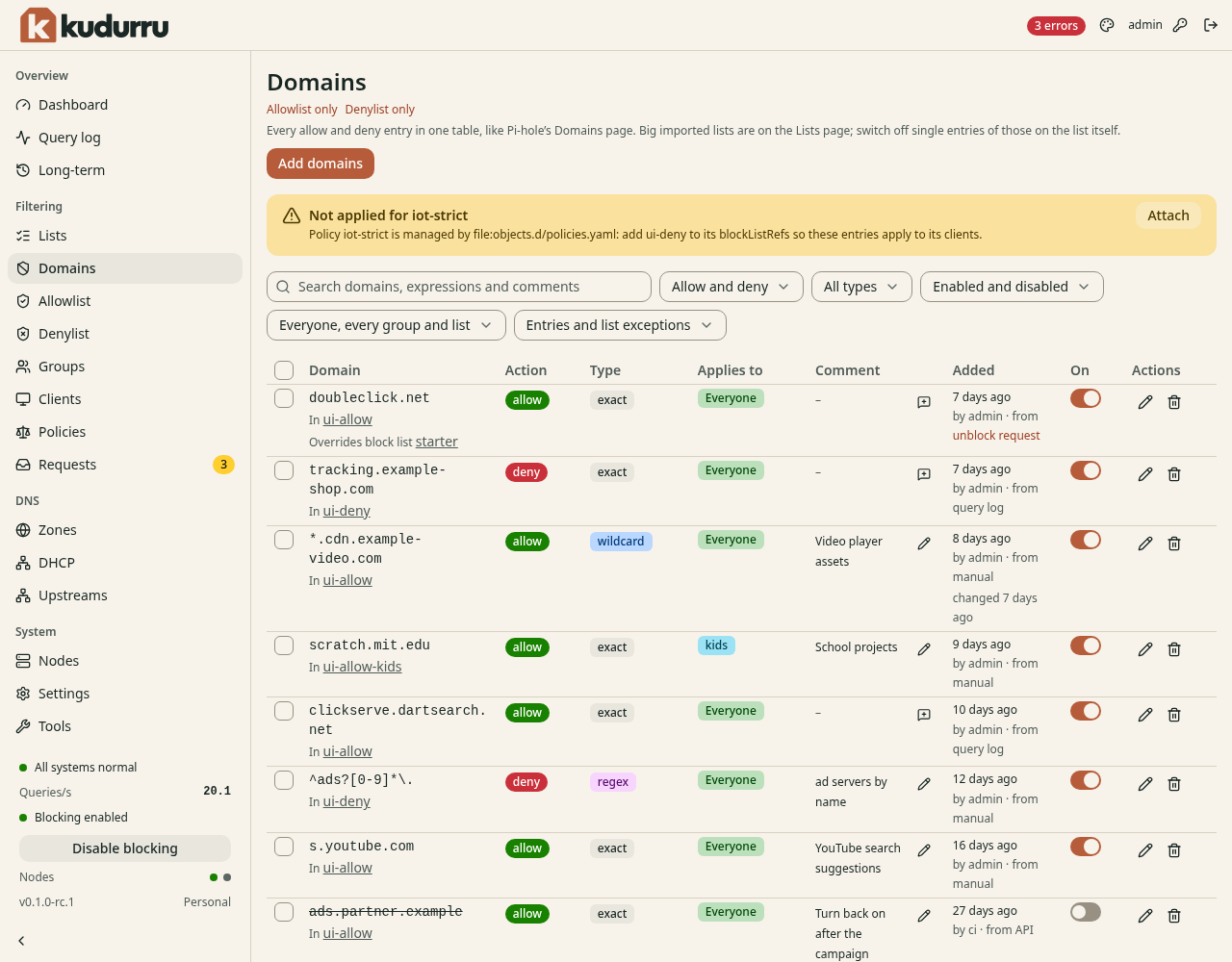
Figure 1. Domains combines Allowlist and Denylist entries.
Allowlist only and Denylist only open the separate pages. Large imported lists stay on Lists. A list exception affects only its named list.
Test the effective answer
- Find Is it allowed? below the table.
- Enter the DNS name in Name.
- Enter the test client's address in For client.
- Click Check.
The check uses the client's actual policies and lists. Use Add domains to create a rule, or follow Allow a blocked site and Block a domain.
Check the result
The test reports the answer for the selected client. If Not applied for names a policy, update its list references at the policy's source. See Domain ownership.