
Import DNS configuration
Before you start
- You need the
adminrole and a backup of your current setup. - The kudurru node must reach the source DNS server.
- You need a Technitium API token or a Pi-hole v6 application password.
Preview a migration
- Open System > Tools.
- Click Import from DNS server.
- Select Technitium or Pi-hole v6 in Source server.
- Enter the source Server URL.
- Enter the API token or Application password.
- Set Destination namespace to the namespace of your existing default policy.
- Click Next to retrieve the preview.
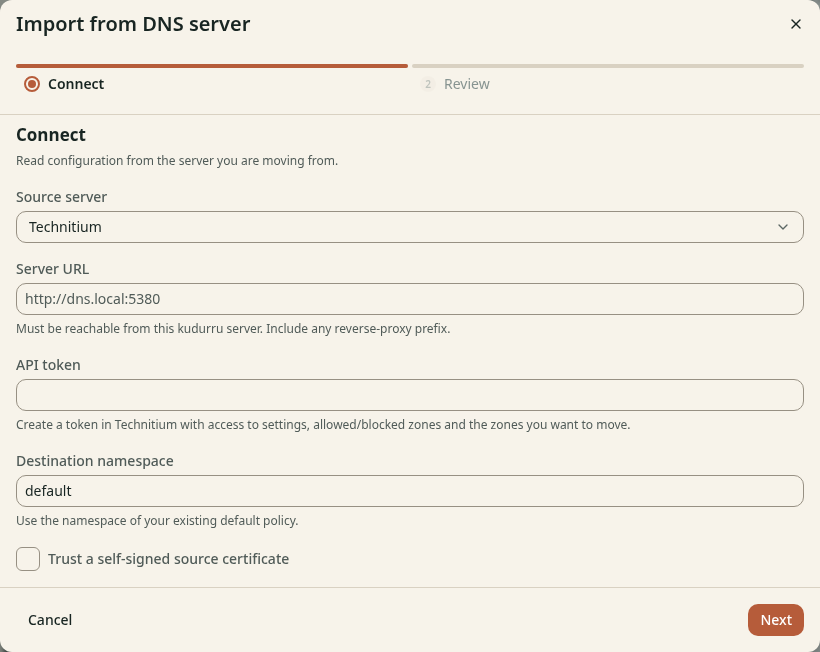
Figure 1. The kudurru node needs network access to the source server.
For Pi-hole, Local DNS suffixes selects the suffixes that become authoritative. Missing names under these suffixes stop forwarding upstream. Use Trust a self-signed source certificate only for a source whose certificate you trust.
Review and import
- Read the object list and every migration warning on Review.
- Click Show converted objects to inspect the configuration.
- Select I reviewed the configuration and migration warnings.
- Click Import configuration.
- Read the result for failed objects or settings.
Import can apply some changes before another change fails. Correct reported errors before you switch clients. Keep the source server available during validation.
Apply kudurru objects
For existing kudurru YAML or JSON, use Import objects on Tools. Paste the objects into Objects, then click Apply. The API applies whole objects and refuses edits to objects owned by another source. For a BIND zone file, use Import zone file on Zones.
Check the result
Inspect imported lists, groups, policies, zones and upstreams on their pages. Test allowed, blocked and local names with Tools and one real client. Confirm that settings persist before you move the remaining clients.