
Check license features and limits
Before you start
- You need a signed-in dashboard account.
- You need host or deployment access to install a key.
Read the current state
- Open System > License.
- Read State, Plan, Read from and Expires under This node.
- Compare node usage with the limit under Limits.
- Check the policy limit.
- Find the feature you need under Features.
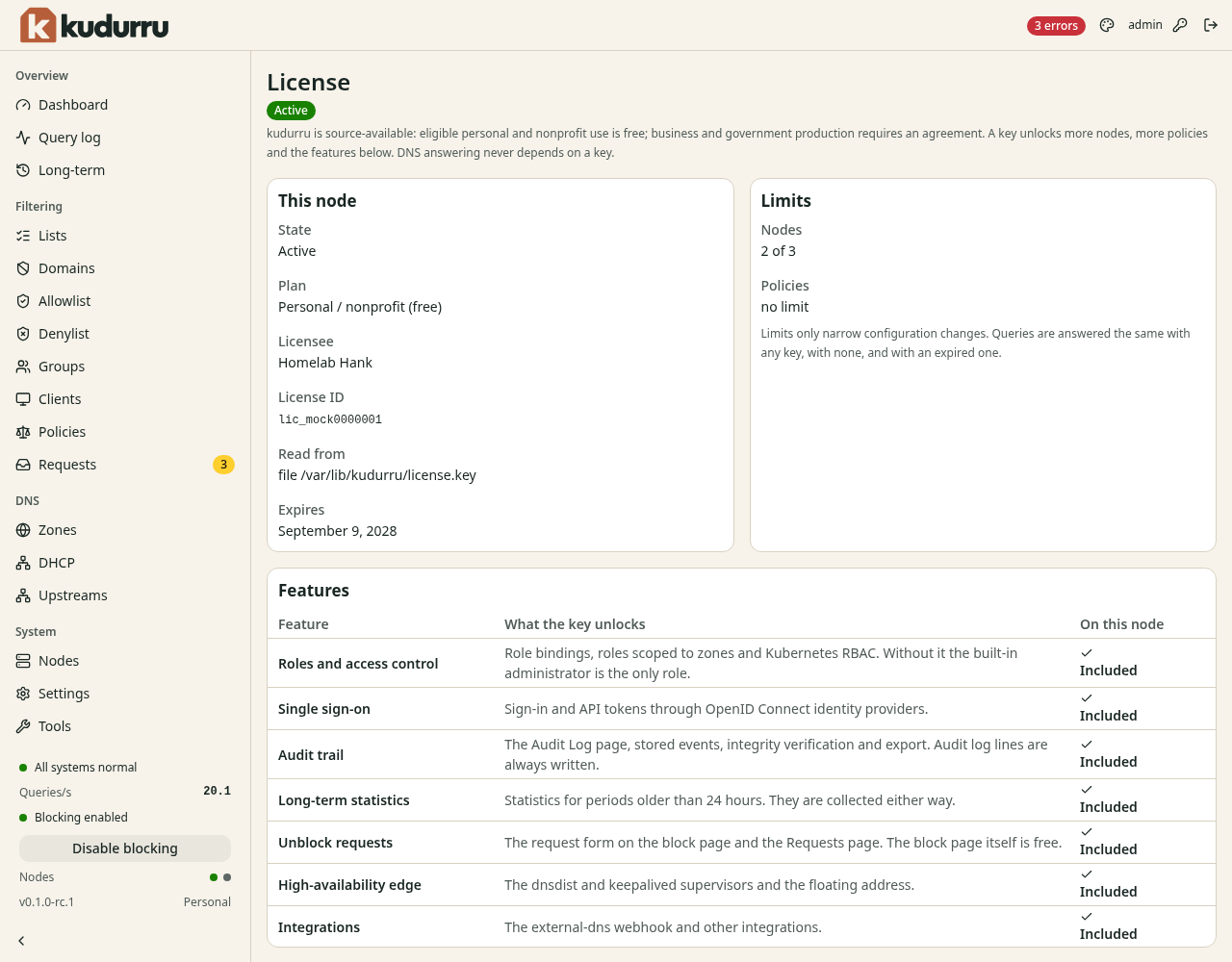
Figure 1. Included and Needs a key explain feature availability.
The page is read-only. Use Add or change the key to find the supported
host and deployment settings. For Helm, use license.existingSecret.
Follow Install a key for the full procedure.
Without a key, configuration is limited to 1 node and the default policy.
Additional roles, access requests, audit access and long-term views need a key.
DNS answers continue with no key or an expired key.
Use the licensing terms to check which agreement applies to your use.
Check the result
After installing a key, wait up to 1 minute and reload License. Confirm the intended plan, limits and feature status. If the key appears on the wrong node only, check the configuration of every replica.