
Manage a list and its sources
Before you start
- You need the
operatororadminrole to change a list. - You need an existing list. Use Add a block list to create one.
Check a list
- Open Filtering > Lists.
- Click Open for the list.
- Read Entries, Invalid lines and Unsupported rules.
- Read Used by to find the policies that use it.
- Click Refresh now to fetch URL sources again.
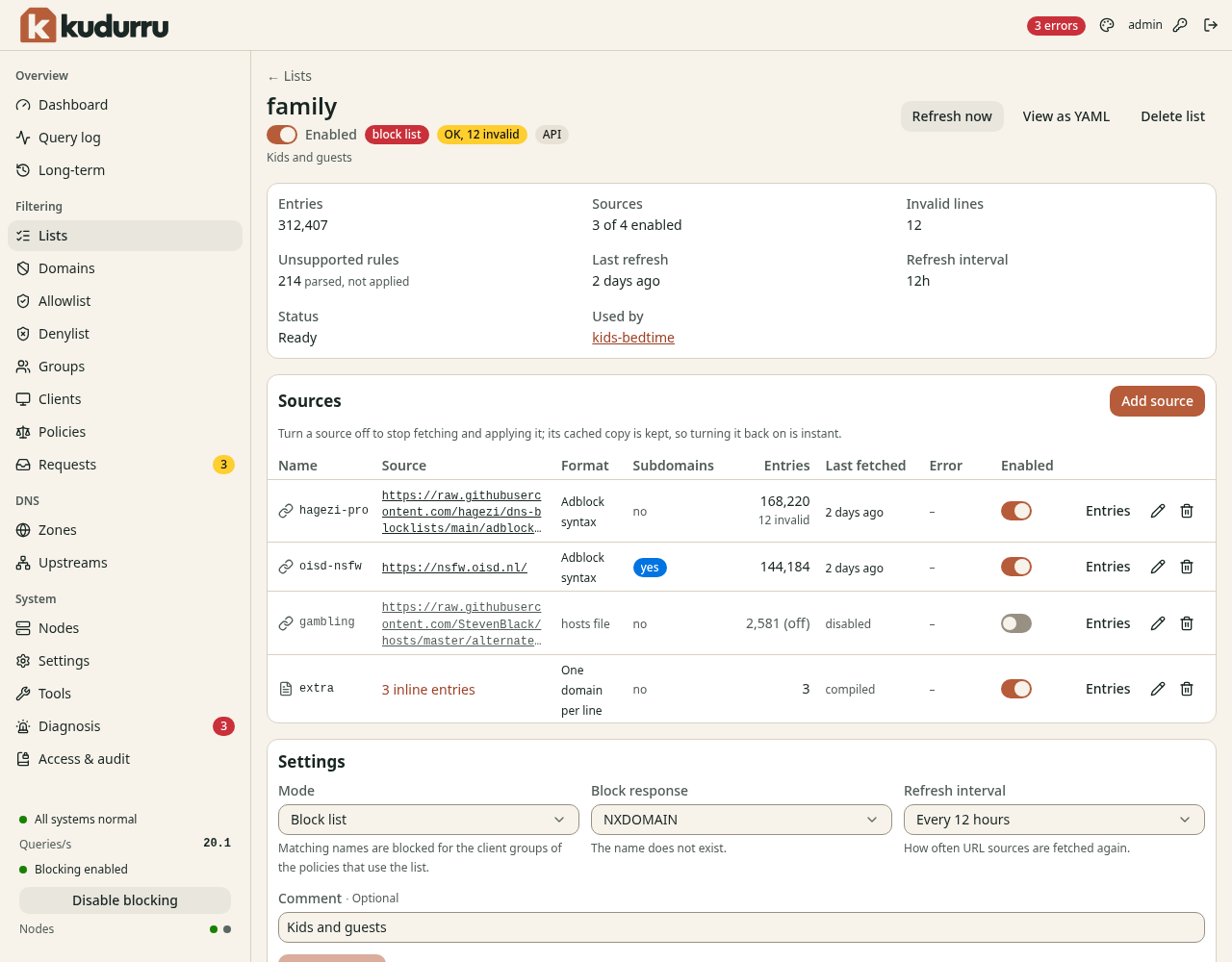
Figure 1. A list needs a policy before it affects clients.
Use Add source for another URL, ConfigMap, file or pasted entries. Use a source's Edit action to change it. The Enabled switches control a whole list or an individual source. An unsupported rule is parsed but does not affect queries.
Turn off one source entry
- Click Entries in the source row.
- Enter the domain in Search entries.
- Turn off Enabled for that entry.
This affects only this list. Another list can still block the same name. Use the Allowlist for an exception across block lists.
If the owner is a file or Kubernetes, edit the source configuration. The dashboard cannot change an object that another owner manages.
Check the result
Run a query as an affected client with Tools. Confirm the matched rule in Query log. If the list has fetch or parsing errors, open Diagnosis.