
Change and test a policy
Before you start
- You need the
operatororadminrole to edit a policy. - You need the address of a client in one of its groups.
Check the active rules
- Open Filtering > Policies.
- Open the policy by its name.
- Read Right now for its state, priority and schedule.
- Read Shadowed by if another policy takes priority.
- Click Edit in the section you need to change.
- Save the changes.
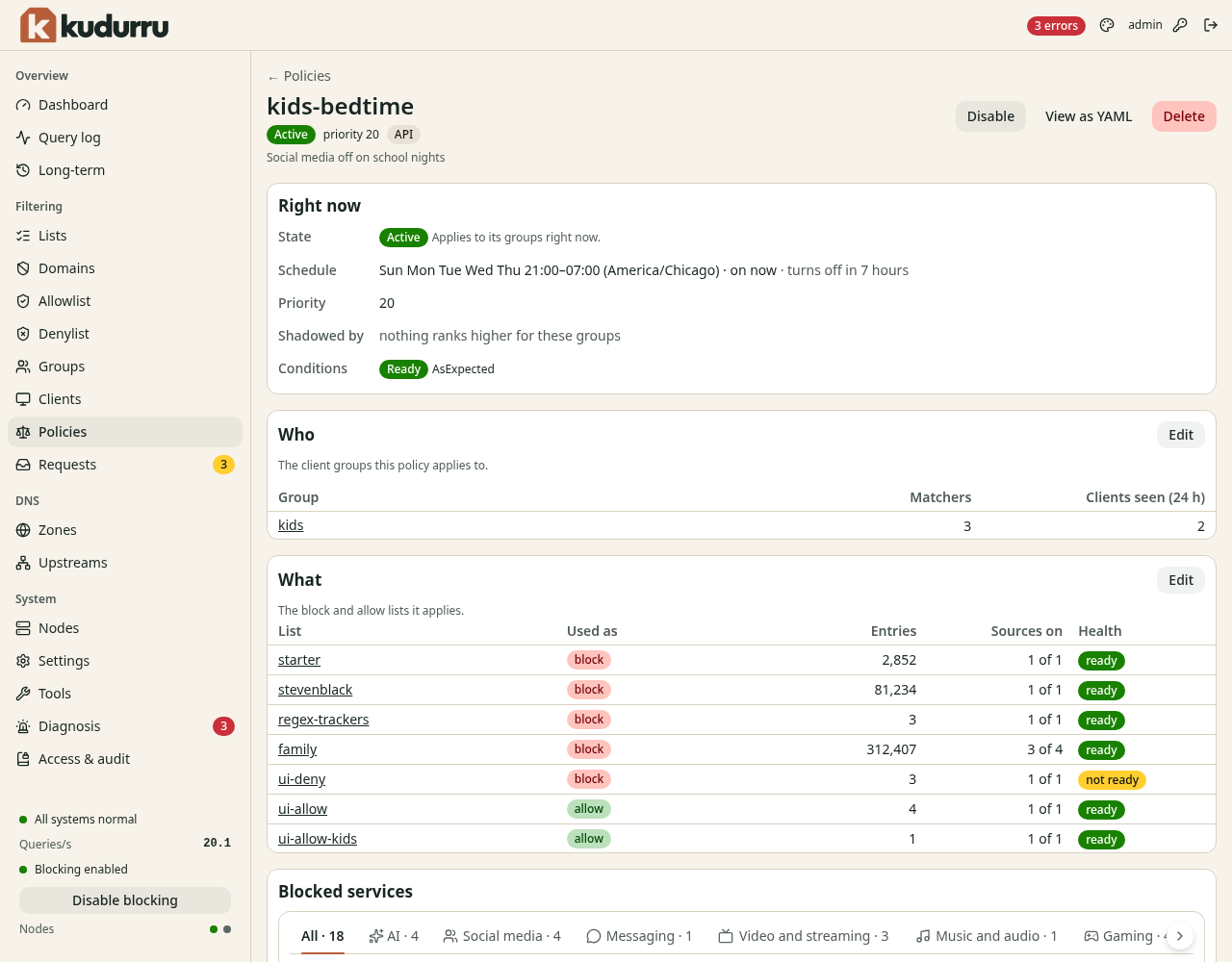
Figure 1. Scheduled off and Disabled policies do not apply now.
Shadowed means another policy decides settings for the same clients. kudurru still merges applicable lists. A schedule uses its configured time zone. File-managed and Kubernetes-managed policies need edits at their source.
Block a service
- Find Blocked services on the policy page.
- Find the service with Search by name or domain.
- Click its tile to select it.
- Click Save services.
Block the whole category also includes services added to that category later. Selecting a tile in a blocked category creates an exception for that service. An allow list still wins over a service block.
Check the result
Open Tools. Query the service's name with the client's address in As client. Check the result in client details and Query log. If the client bypasses kudurru with another DNS service or a VPN, these rules cannot affect its queries.