
Reserve an address for a device
Before you start
- You need the
adminrole and a running scope managed by the dashboard. - You need the device's MAC address and an available address inside the subnet.
Use a reservation for a printer, server or other device that needs a stable address. The reserved address can be outside the dynamic pool, but it must be inside the subnet.
1. Add the reservation
- Open DNS > DHCP.
- Open the running scope.
- Find Reservations.
- Click Add reservation.
- Enter the device's MAC address.
- Enter the Reserved address.
- Enter a Hostname, such as
printer, if you want a local name. - Click Save reservation.
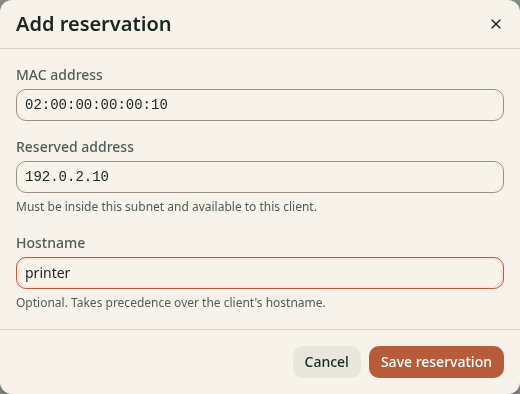
Figure 1. Match the reservation to the device's actual MAC address.
A device with a private or randomized MAC can appear as a different client. Use the stable MAC for this network. An address that another client still leases cannot become this device's reservation.
2. Renew and verify
- Renew the device's lease or reconnect it to the network.
- Find it in Leases.
- Confirm that its address matches Reserved address.
- Query
printer.lan.home.arpaif lease DNS registration is on.
A reservation on a running API-managed scope applies immediately. The client receives it when it next acquires or renews a lease. On SQLite, add reservations under Setup for next restart if the scope is not running. On Kubernetes, scope changes apply live. Edit a managed scope at its configuration source.
Check the result
The client has the reserved address. Its local name resolves while its lease is active and DNS registration is on. A reservation alone does not create a record for an offline device. For a permanent record, create a local DNS name.