
Add a block list
Before you start
- You need the
adminoroperatorrole. - You need a policy that you can edit in the dashboard.
A new node already uses the small starter list. Add another list when
you need more coverage.
1. Choose a source
- Open Filtering > Lists.
- Click New list.
- Select Block list on the Type step.
- Click Next.
- Select one of the Well-known lists on the Sources step.
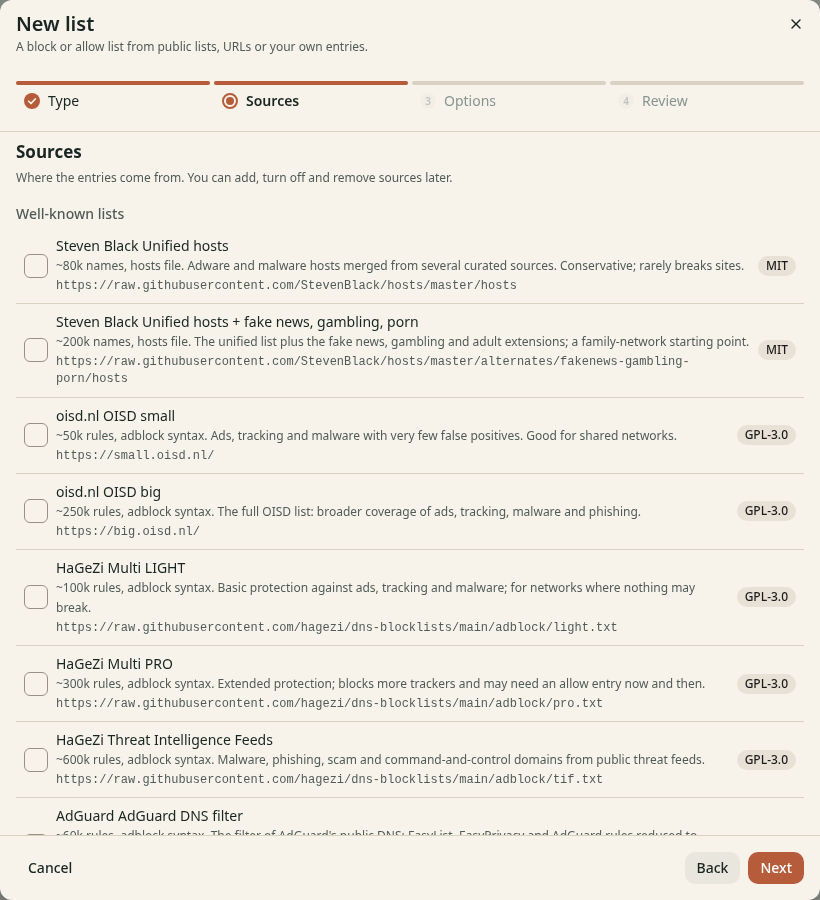
Figure 1. Choose a source for the list.
2. Attach the list to a policy
- Click Next to open Options.
- Enter
home-adsin Name. - Select
defaultin Use in policies. - Keep Start enabled on.
- Click Next.
- Check the summary on Review.
- Click Create list.
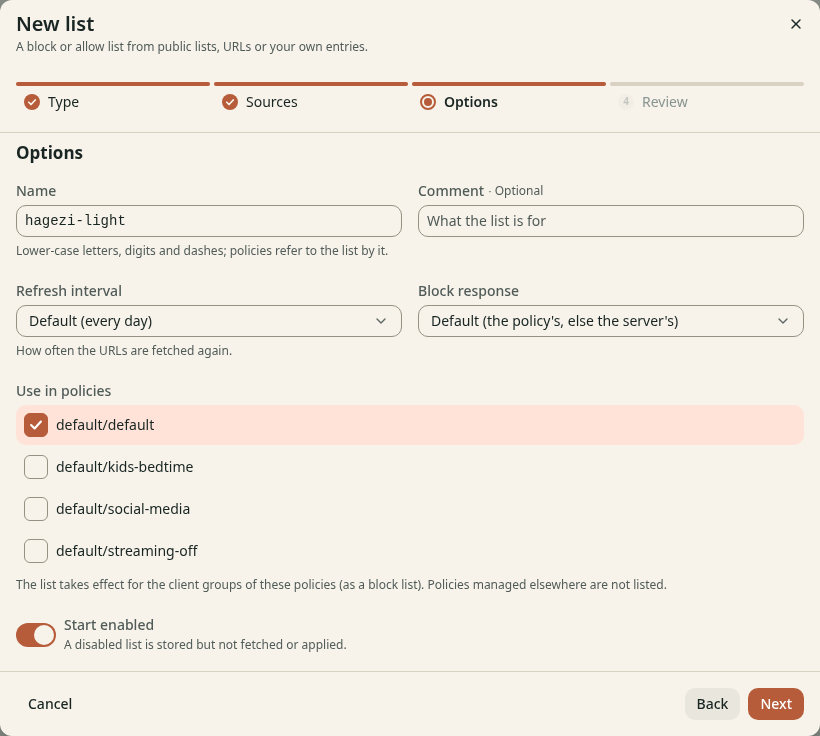
Figure 2. A policy must use the list for it to affect clients.
If Review says No policy uses this list, go back and select a policy.
For a policy managed by a file or Kubernetes, change its blockListRefs at the source.
Check the result
Open the new list. Check that Entries is greater than zero and Health shows OK.
Search for a name from that list in Which lists contain a domain?.
Query that name from a client, then check its result in Query log.
If a site stops working, follow Allow a blocked site.