
Allow a blocked site
Before you start
- You need the
adminoroperatorrole. - You need the address of a client that cannot open the site.
1. Find the blocked name
- Open Query log.
- Enter the client address in Client.
- Select Blocked in Status.
- Open the site again on the client.
- Click a new query row to read its matched list and rule.
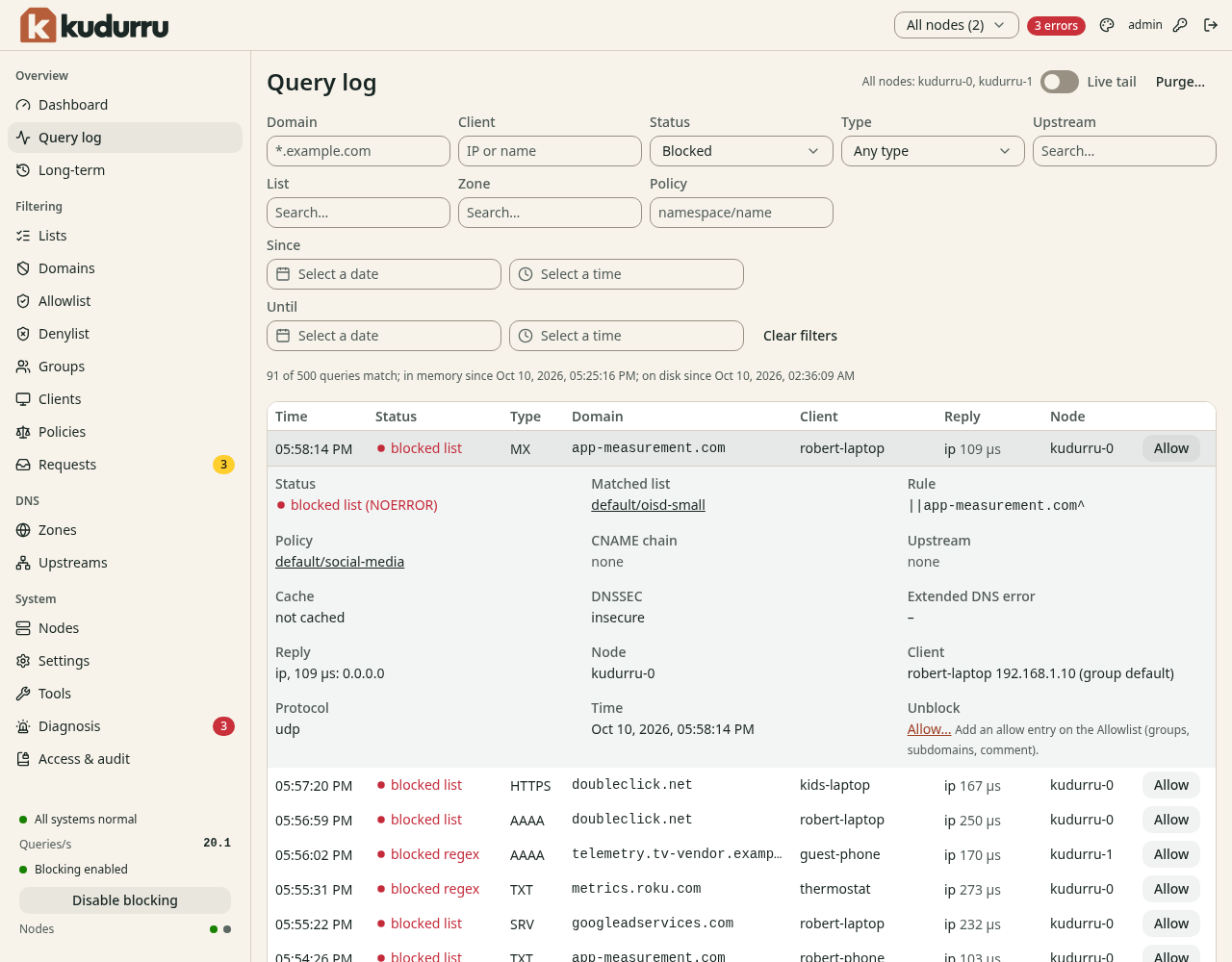
Figure 1. Find the DNS name that the site needs.
A site can use several names. The blocked name can differ from the name in the browser's address bar.
2. Add a focused exception
- Open Filtering > Allowlist.
- Click Add to the Allowlist.
- Select the exact domain type in Type.
- Enter the blocked name in Domains.
- Select Everyone or Some client groups in Applies to.
- Enter the reason in Comment.
- Click Add.
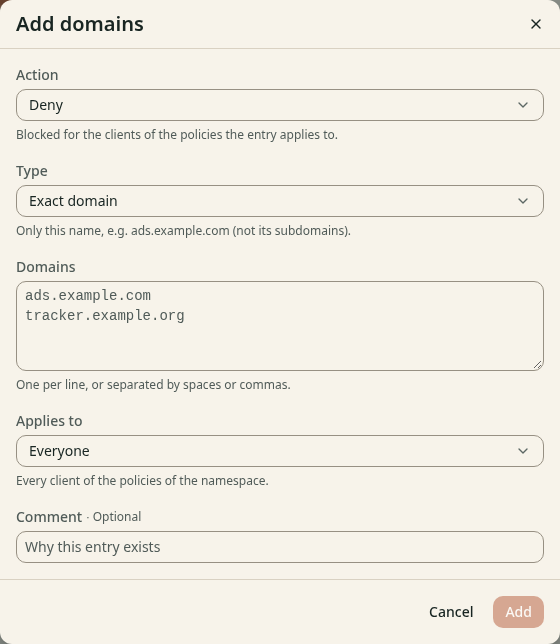
Figure 2. Allow the name for the clients that need it.
The example image shows the combined Domains page. On Allowlist, the action is already Allow. An exact entry affects one name. Use a wildcard only when you need the whole domain.
Check the result
Query the name again from the client. Confirm a permitted result in Query log. If a cached block remains, open System > Tools and flush that name from the cache. Then clear the client's DNS cache and retry the site.
If the page says Not applied for, update the named policy at its source. See Lists and domains.