
Sign in to the dashboard
Before you start
- You need a running node and its address.
- You need the password in
secrets/admin_passwordfrom the previous step.
1. Open the dashboard
- Open
https://<host>:8080/in your browser. - Check that the address belongs to your node before you accept its certificate.
- Enter
adminin Username. - Enter the password in Password.
- Click Sign in.
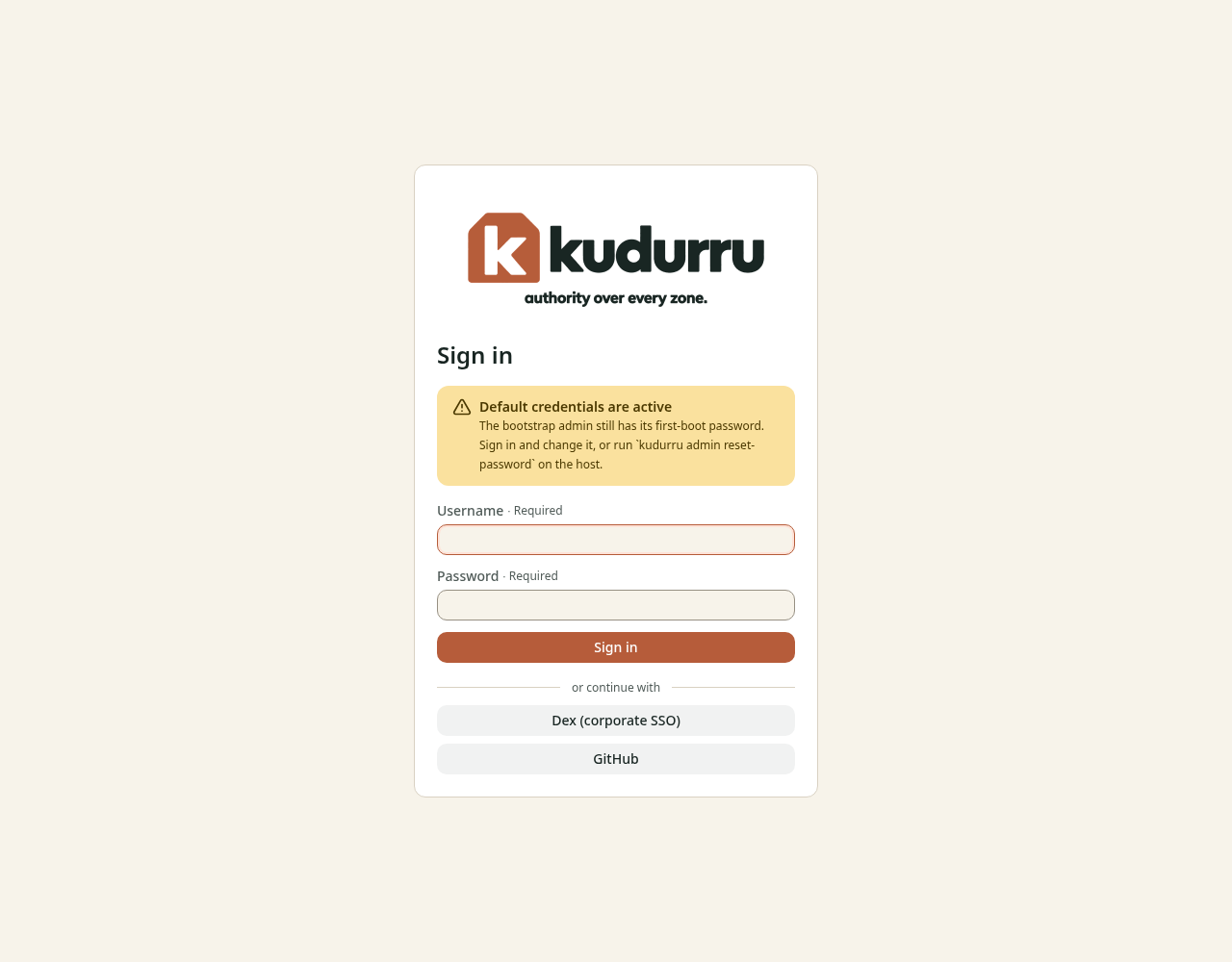
Figure 1. Sign in with the local account.
A new node creates a self-signed certificate. Use your own certificate to remove the browser warning. See TLS setup. Your page has single sign-on buttons only if an administrator configured them.
2. Change the first password
- Open Change password with the key icon at the top right.
- Enter the Current password.
- Enter a New password with at least 8 characters.
- Enter it again in Confirm password.
- Click Change password.
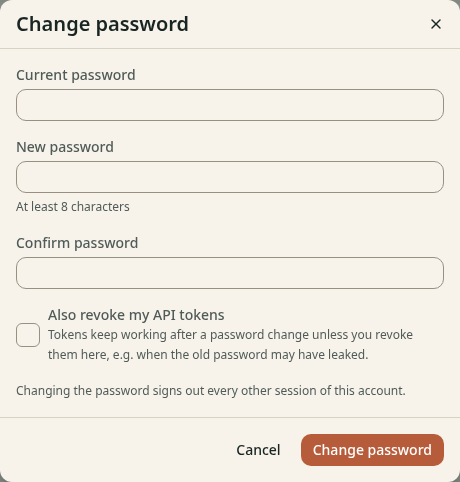
Figure 2. Set a password for your account.
Check the result
The dashboard opens. A new node shows zero queries until a client uses it. The message Default credentials are active goes away after the password change.
If you lost the password, use the password recovery steps.