
User guide
This guide is for people who use a network that kudurru serves. You do not install or set up anything. You see kudurru in two cases:
- A site is blocked, and a page tells you so.
- An administrator gives you an account for the dashboard.
What kudurru does for you
kudurru is the DNS server of your network. Your device asks kudurru for the address of a site. kudurru gives the address, or it refuses.
The administrator of your network decides which sites kudurru refuses. Typical reasons are advertisements, trackers, unsafe sites and sites that are not for children.
A site is blocked
When you open a blocked site, your browser can show the kudurru block page. Figure 1 shows an example.
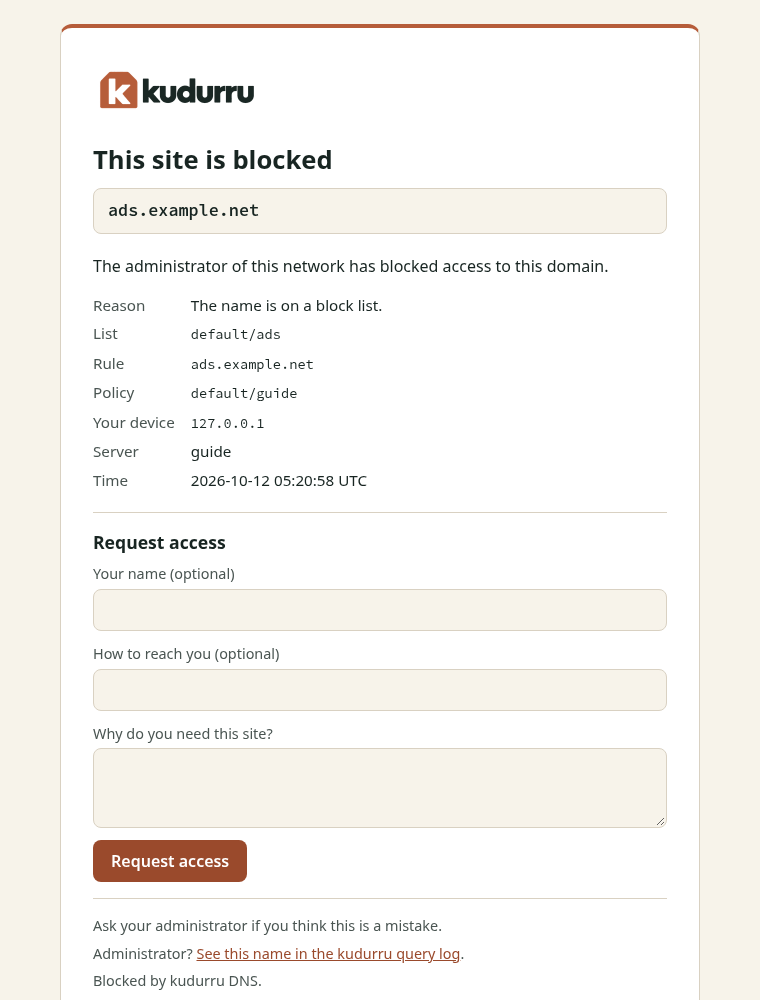
Figure 1. The block page.
The page shows this information:
| Item | Meaning |
|---|---|
| This site is blocked | The title. The administrator can change it. |
| The name in the gray box | The name that kudurru blocked. |
| The message | Text from the administrator of your network. |
| Reason | Why kudurru blocked the name. |
| List and Rule | The block list and the rule that matched the name. |
| Policy | The policy that applies to your device. |
| Your device | The address of your device. |
| Server and Time | The kudurru node that answered and the time. |
NOTE: The administrator can hide the reason, the list, the rule and the policy. Then the page shows only the name and the message.
Ask for access
You can ask the administrator to allow a blocked name. The page has a form for this.
Before you start: Make sure that the name in the gray box is the site that you need.
- Open the blocked site in your browser. The block page shows.
- Enter your name in Your name (optional).
- Enter an email address or a telephone number in How to reach you (optional).
- Enter a short reason in Why do you need this site?. Use 500 characters at most.
- Click Request access.
The page shows Your request was sent to the administrator. (Figure 2).
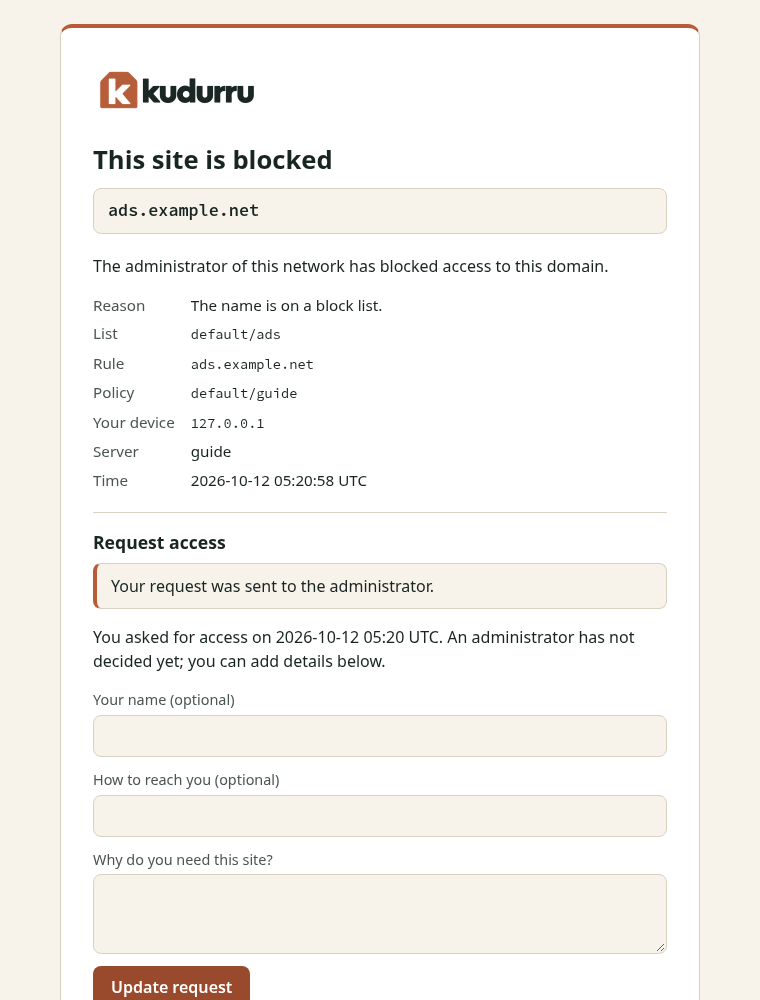
Figure 2. The block page after you send a request.
The name, the contact and the reason are optional. The administrator sees them. The administrator also sees the address of your device, or only the network of your device. This depends on the privacy settings of the network.
If you send the form again for the same name, kudurru updates your first request. It does not make a second request. Each device can send 5 requests in 1 hour. The administrator can change this limit.
After you ask
The block page shows the state of your request every time that you open the name again.
| State | What the page shows | What you do |
|---|---|---|
| Pending | The time of your request. The form stays on the page. | Wait. You can add details. |
| Approved | A message that tells you to try again in a moment. | Open the site again. |
| Denied | The note of the administrator and the form. | Read the note. Ask again if you have a new reason. |
| Ended | The form. | Ask again. The approval ran out, or nobody decided in time. |
After an approval, your device can keep the old answer for a short time. The default time is 10 minutes. If the site still shows the block page, wait and try again. You can also close the browser and open it again.
If the block page does not show
kudurru cannot always show the block page. These are the usual causes.
- The browser shows a certificate warning. The site uses HTTPS. The block page cannot show a valid certificate for a site that it does not own. Do not install a certificate to remove the warning. Ask the administrator.
- The browser shows an error and no warning. Some sites tell the browser to use HTTPS only. The browser then refuses the block page. This is normal. Ask the administrator if you need the site.
- An app shows its own error. An app does not show web pages. It shows that it cannot connect. Ask the administrator if you need the app.
- The site is not blocked on your device. Some browsers use their own secure DNS service. kudurru does not see these queries. Ask the administrator which setting to use.
Use the dashboard
An administrator can give you a dashboard account with the role Viewer. The dashboard shows the state of the network. A viewer cannot change it.
Sign in
- Open the address that the administrator gave you, for example
https://dns.example.net:8080/. - Enter your user name and your password.
- Click Sign in.
If the page has a button for single sign-on, click it. Then sign in with the account of your company.
NOTE: The browser can show a certificate warning at the first visit. Ask the administrator if the warning is normal.
Change your password
A local account can change its own password.
- Click the key icon at the top right of the page.
- Enter your Current password.
- Enter a New password of 8 characters or more.
- Enter the new password again in Confirm password.
- Click Change password.
The dashboard signs out every other session of your account.
What you can see
The navigation list at the left of the page has all the pages. Your role decides which pages work for you. A viewer can read these pages:
- Dashboard: the number of queries, the blocked queries and the charts
- Long-term: the same statistics for 7 days to 1 year
- Lists, Domains, Allowlist and Denylist: what kudurru blocks and allows
- Groups, Clients and Policies: who gets which rules
- Zones, Upstreams and Settings: how the network is set up
A page that your role cannot read shows a Not permitted message (Figure 3). A button that your role cannot use is gray.
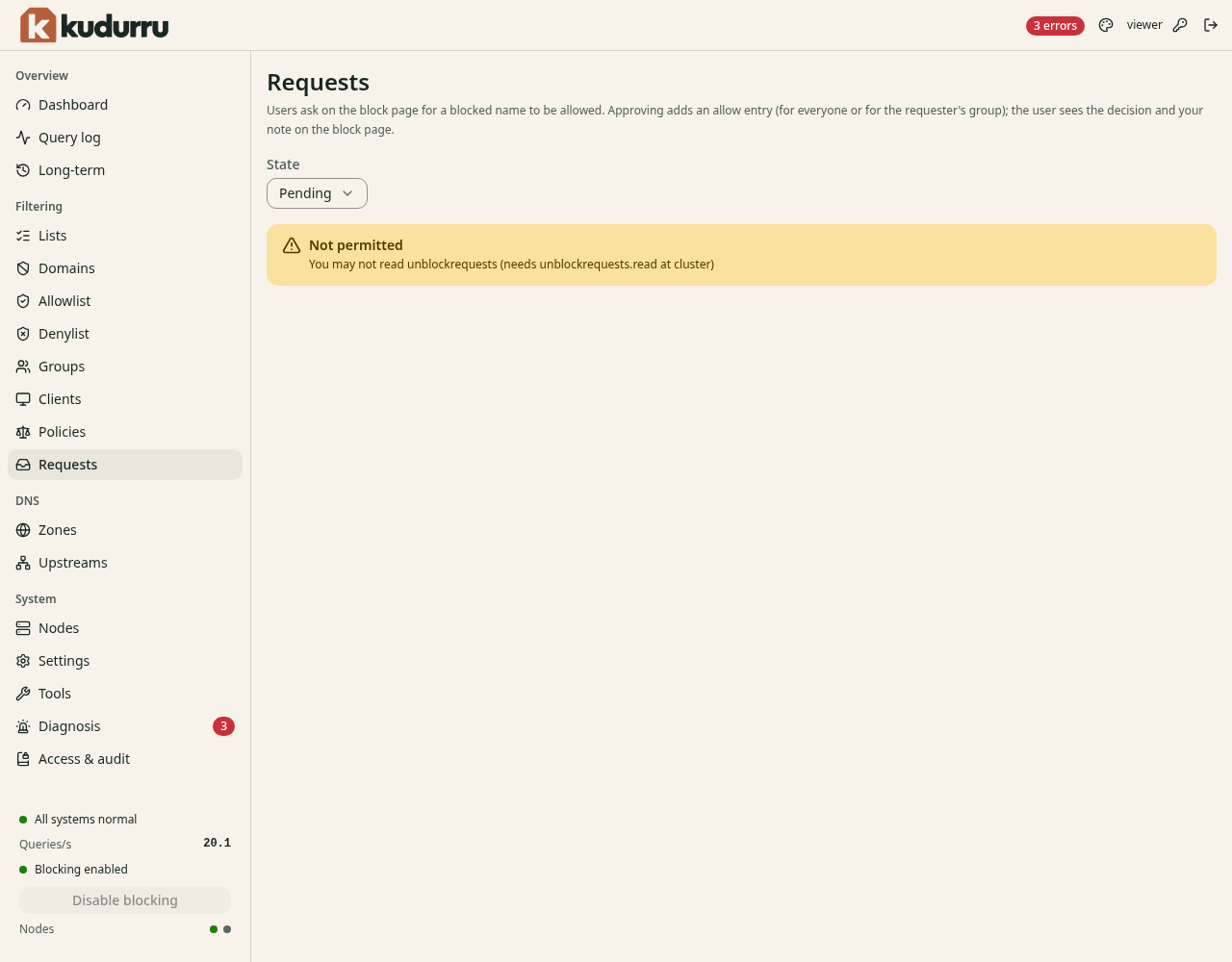
Figure 3. A page that the role Viewer cannot read.
The role Viewer cannot read the Query log, the Requests page and the audit log. These pages show what each client asks for. The roles Auditor and Operator can read the first two. Only the Auditor and the Administrator can read the audit log. Only the Administrator can read the Nodes page. The administrator guide lists all the roles.
Change the appearance
The appearance is only for your browser. The administrator does not see it.
- Open the Settings page.
- In Appearance, select Auto, Light or Dark.
- Select a Theme.
- Turn on High contrast if you need stronger colors.
Sign out
Click the sign-out icon at the top right of the page. The dashboard also signs you out after 30 minutes without activity. A sign-in lasts 12 hours at the most. An administrator can change these times.
Privacy
The query log of kudurru records the names that devices ask for. The administrator decides what the log keeps. It can keep the full address of your device, only the network of your device, or nothing.
Ask your administrator what your network records and for how long.
Get help
Ask the administrator of your network. Give them this information:
- the name that is blocked, from the gray box on the block page
- the time that the block page shows
- the address of your device, from Your device